



In this guide, we’ll show you the steps on how to edit and translate your Chatway widget texts to other languages.
Chatway is a live messaging app that you can install on your website so your site visitors can chat with you.
You can even reply to your site visitors from your smartphone by installing the Android (Google Play Store) or iOS (Apple App Store) app.
The Chatway app will detect the site visitor’s browser language and will show the chat widget in that language if available.
By default, English is the only active language and will be shown to your visitor unless other languages are activated. You can also edit the English default text and other languages as well.
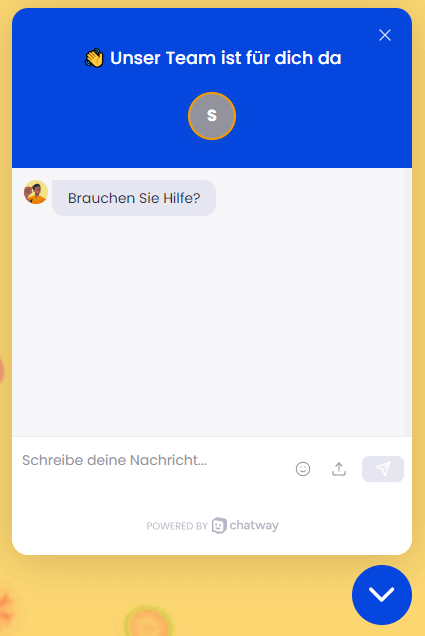
Depending on the added languages and the site visitors’ browser language, it may look like the preview below.
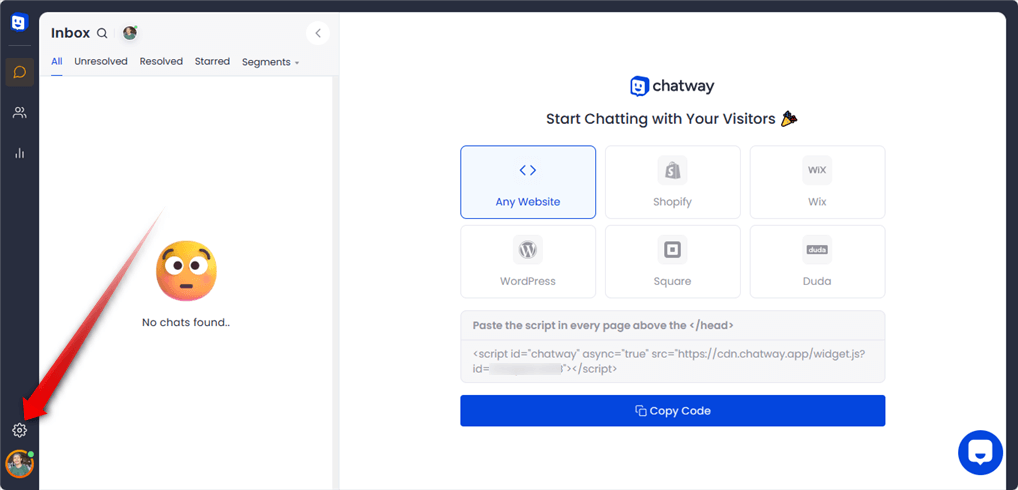
Step 1: Open your Chatway dashboard and click on the settings icon on top of your Chatway profile picture in the bottom left corner.
Step 2: You will see the Widget Settings, scroll down and click Translate Widget.

Step 3: Tick the checkbox of the language that you want to add. By default, only English is enabled until you add another language. The Chatway app will detect the visitor’s browser language and will show the chat widget in that language if available.

Step 4: You can also edit the text per language.

Step 5: You can also change the default language. This will be the widget language displayed if no language is specified for the visitor’s browser language.

Step 6: Click “Save” when you’re done adding the languages and editing the texts.

Step 7: Don’t forget to hit “Publish” for the changes to take effect.
