


Chatway’s Google Analytics 4 (GA4) integration helps you understand which live-chat interactions lead to meaningful customer actions. You can send Chatway widget activity to GA4, customize the events you track, and use the most valuable interactions, such as a visitor’s first message, as conversions in Google Ads.
This guide will show you how to connect Chatway to GA4, choose the events you want to measure, and enable Google Ads conversion tracking.
Before you begin: This integration is available on all paid plans. Your website must already have a working Google tag connected to a GA4 web data stream. If you are not yet on a paid plan, you can compare Chatway plans.
Connect Chatway to Google Analytics 4
Step 1: Open the Google Analytics integration page in your Chatway dashboard. You can also open Integrations & Apps and select Google Analytics.

Step 2: Click Connect, then turn on Enable Google Analytics 4 (GA4) Integration.
You can also reach this page from Widget Settings > Advanced Settings by clicking Connect now under Integrate Google Analytics (GA4).

Step 3: If you want Chatway to verify a specific GA4 web stream, enter its GA4 Measurement ID. This field is optional, but when you enter an ID it must match the web stream installed on your website.
A GA4 Measurement ID begins with G-. In Google Analytics, go to Admin > Data streams, select your web stream, and copy the Measurement ID. See Google’s guide on finding your Measurement ID.
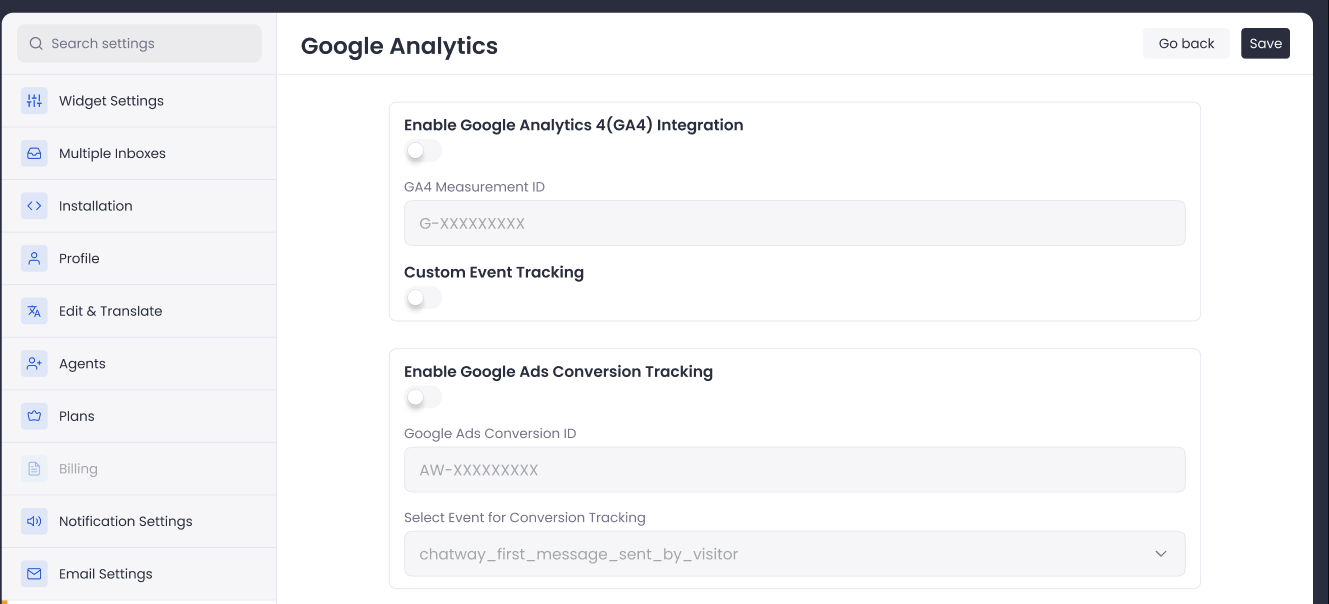
Step 4: Click Save. Chatway can now send supported widget interactions to GA4.
Choose which Chatway events to track
Chatway tracks the most important live-chat interactions, including opening and closing the widget, sending a first message, submitting the contact form, and clicking a channel such as WhatsApp or email. These events use the Chatway Live Chat event category.
chatway_icon_clicked– the visitor opened the widgetchatway_icon_closed– the visitor closed the widgetchatway_first_message_sent_by_visitor– the visitor sent their first live-chat messagechatway_form_submitted– the visitor submitted the live-chat contact formchatway_channel_clicked_[channel]– the visitor clicked a channel in the widget
Turn on Custom Event Tracking if you want more control. You can enable or disable individual events and replace an event’s default GA4 name with your own. Additional events can include FAQ views, chat ratings, starting a new conversation, and an agent ending a conversation.
Tip: Keep custom event names short and descriptive. GA4 event names are limited to 40 characters.
Track Chatway conversions in Google Ads
Step 1: Make sure Enable Google Analytics 4 (GA4) Integration is turned on. Google Ads conversion tracking cannot be enabled before GA4.
Step 2: Turn on Enable Google Ads Conversion Tracking and enter your Google Ads Conversion ID. The ID usually begins with AW-.
Step 3: Under Select Event for Conversion Tracking, choose the Chatway event that represents a valuable action for your business. By default, Chatway selects chatway_first_message_sent_by_visitor.

Step 4: Click Save.
To use GA4 events for campaign reporting or bidding, make sure your GA4 property is linked to Google Ads and the relevant event is configured as a key event or conversion. Google explains how to mark an event as a key event and create Google Ads conversions from Google Analytics events.
Verify that events are working
- Open your website in a new browser tab.
- Perform the Chatway action you want to test, such as opening the widget or sending the first message.
- In Google Analytics, check Reports > Realtime or Admin > DebugView for the event.
Realtime data usually appears within a few minutes, while standard GA4 reports can take longer to update.
Troubleshooting
- Chatway cannot confirm the setup: Check that the Google Analytics tag is installed and loading on your website. If you entered a Measurement ID, confirm that it matches your GA4 web stream.
- No events appear in GA4: Confirm that the Chatway widget and Google tag are both active on the page you are testing. Then repeat the action and check Realtime or DebugView.
- Google Ads options are unavailable: Enable the GA4 integration first, then return to the Google Ads section.
- Conversion data is delayed: New key events and imported conversions can take time to appear in Google Ads. Also confirm that the correct GA4 property and Google Ads account are linked.
That’s it! Chatway will now help you measure the live-chat interactions that contribute to leads and conversions. For more setup tips, visit the Chatway Help Center.