


Chatway is a customer support platform that brings live chat conversations, teammates, inboxes, and automated workflows together in one place. When several agents handle incoming conversations, Chatway’s routing rules can distribute new chats automatically so customers reach an available agent and work is shared more evenly.
In this guide, you will learn how to choose between manual, round-robin, and least-busy routing; decide which agents or teams are eligible for automatic assignment; control conversation visibility; and apply the same load-balancing logic when an automation assigns a conversation to a team.
Routing rules are available on the Plus plan and during the free trial.
Set up routing rules for an inbox
- Open Routing Rules in your Chatway dashboard. You can also open Settings, then select Routing Rules under Team & Inbox.
- If your account has multiple inboxes, select the inbox you want to configure. Each inbox can have its own routing setup.
- Under How should chats be distributed among the agents?, choose one of these options:
- Manual (default): Agents pick or assign conversations themselves.
- Round-robin: Chatway assigns each new conversation to the next available eligible agent in turn.
- Load-based (Least busy): Chatway assigns the conversation to the available eligible agent with the fewest active, unresolved conversations.
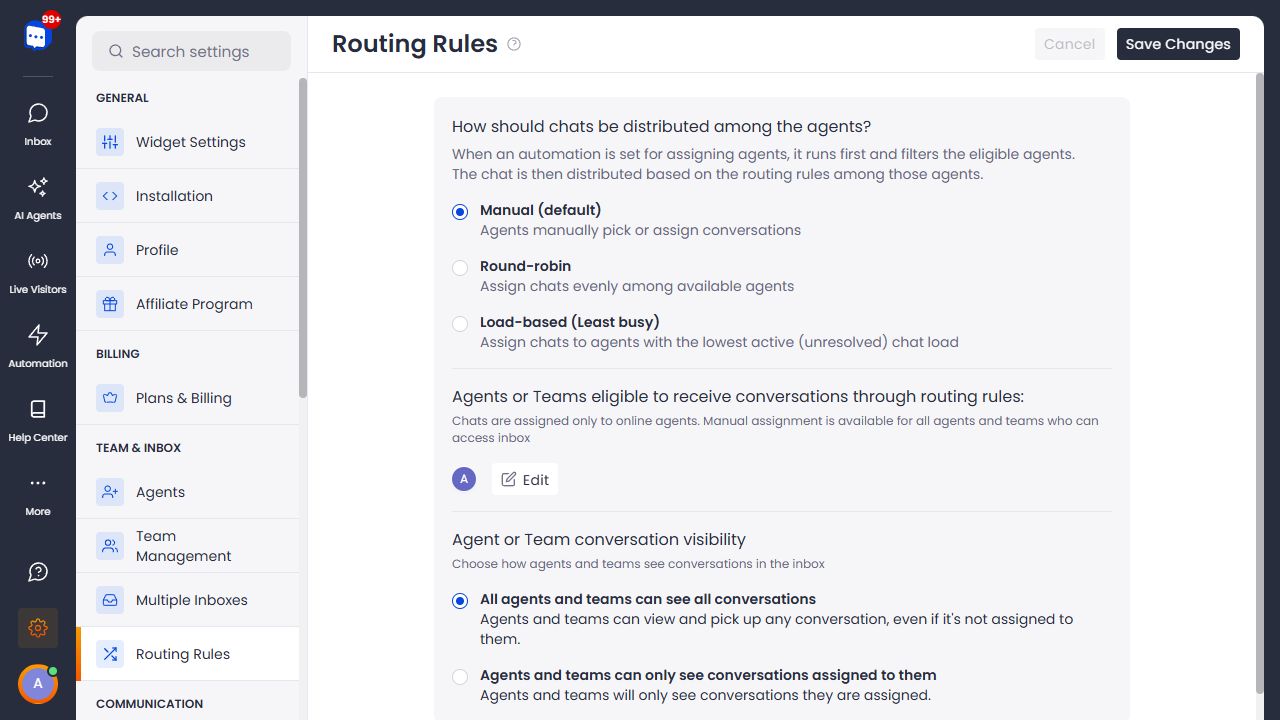
- In Agents or Teams eligible to receive conversations through routing rules, choose the agents and teams that can receive chats automatically. Chatway automatically routes only to eligible agents who are online. Agents or teams that are not selected can still be assigned manually when they have access to the inbox.
- Under Agent or Team conversation visibility, choose whether everyone assigned to the inbox can see all conversations or whether they can see only conversations assigned to them.
- Select Save Changes.
If you use multiple inboxes, repeat these steps for each inbox. Chatway applies an inbox’s rule only to the eligible agents and teams that have access to that inbox.
How the routing options work
Manual
Use manual routing when your team prefers to review the inbox and pick conversations themselves. Automatic agent selection is not applied, including when an automation assigns a team.
Round-robin
Round-robin is useful when you want to distribute new conversations evenly. For example, if Agents A, B, and C are online and eligible, Chatway assigns conversations to A, then B, then C, and repeats the cycle.
When both individual agents and teams are eligible, Chatway rotates through the eligible agents, including eligible members of those teams. An agent who belongs to a team is treated as an individual participant in the rotation.
Load-based (Least busy)
Least-busy routing is useful when some conversations take longer than others. Chatway compares the number of active, unresolved conversations handled by each available eligible agent and assigns the new conversation to the agent with the lowest current load.
Apply load balancing when an automation assigns a conversation
Chatway can also use your inbox routing rule after an automation assigns a conversation. This is useful for workflows such as routing billing questions to the Billing team or sales questions to the Sales team.
- Open Automations.
- Create a new automation or edit an existing one. For a full introduction, see How to use automations and create smart workflows in Chatway.
- Add the trigger and conditions that identify the conversations you want to route.
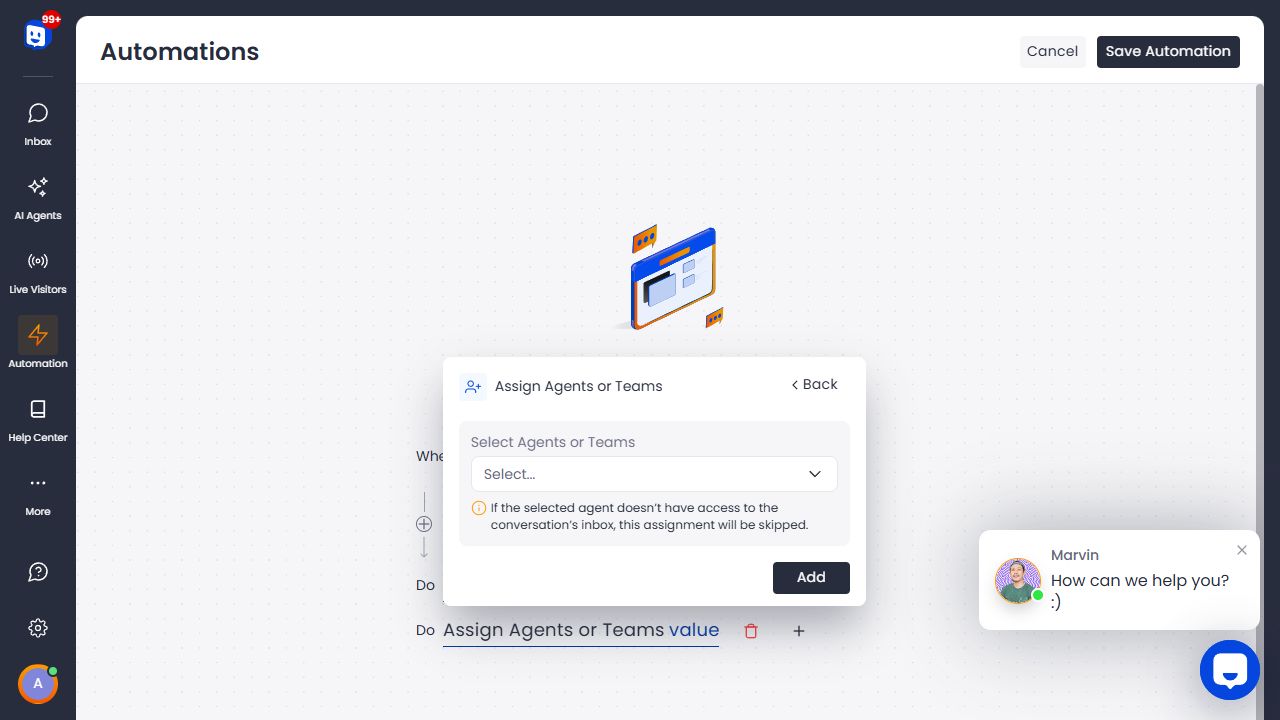
- In the Do section, add Assign Agents or Teams.
- Select an agent or team that has access to the conversation’s inbox, then add the action. If the selected agent does not have access to that inbox, Chatway skips the assignment.
- Save and activate the automation.
You can also use Chat Routing quick replies to let visitors choose a department and route the conversation based on their answer. See How to route conversations to agents or teams in Chatway.
What happens after an automation runs
- A specific agent is selected: Chatway assigns the conversation directly to that agent. The inbox load-balancing rule is not applied.
- A team with several agents is selected: Chatway applies the inbox’s round-robin or least-busy rule only to eligible members of that team.
- A team with one agent is selected: Chatway assigns the conversation to that agent.
- No agent or team is selected by an automation: Chatway applies the normal inbox routing rule to the eligible agents in the inbox.
- The inbox uses manual routing: The conversation remains assigned to the selected team, and an agent can pick or be assigned to it manually.
- An agent is already assigned: A later automation keeps the existing agent if it assigns the same agent or a team that includes that agent. The assignment changes only when the automation selects a different agent or a team that does not include the currently assigned agent.
For example, suppose an inbox includes Agents A, B, C, and D, while a Billing automation assigns Team A containing Agents A and B. Chatway considers only A and B for automatic agent assignment, then applies the inbox’s round-robin or least-busy rule between those eligible team members.
Before testing your setup
Check that:
- the agents and teams have access to the relevant inbox;
- the agents who should receive chats automatically are eligible in Routing Rules;
- at least one eligible agent is online;
- the automation is active and its conditions match your test conversation; and
- the automation’s selected agent or team has access to the conversation’s inbox.
Create a test conversation that matches the automation conditions, then confirm that the conversation is assigned according to the selected inbox rule. If no automation assignment action runs, the regular inbox routing rule should still apply.
With these settings in place, Chatway can keep conversations moving to the right people while reducing manual triage and preventing one agent from receiving a disproportionate share of the workload.