


This guide explains how to connect Chatway MCP (Model Context Protocol) with Cursor, allowing Cursor to securely interact with Chatway tools, conversations, and customer support data through an MCP connection.
Once Chatway MCP is connected, Cursor Agent can work directly with your customer support environment. It can help you search and understand conversations, retrieve relevant customer information, assist with support workflows, and perform available actions depending on the permissions granted to the MCP connection.
For automatic real-time replies to incoming customer messages, connect Chatway webhooks to your AI agent in Cursor and use the Chatway API to send responses. Chatway MCP can be used alongside this workflow to give your AI agent access to Chatway tools and data.
This makes it possible for AI agents to respond to customer questions, use your existing support knowledge to provide relevant answers, detect conversations that may require additional attention, and help your team handle customer requests more efficiently.
Beyond individual conversations, Chatway MCP can also be used to review support data, discover frequently occurring customer questions, summarize feedback, and identify useful patterns that can help improve your overall customer support operations.
Chatway’s MCP integration is available on all Chatway plans, including the Free plan.
Requirements
Before connecting Chatway MCP to Cursor, make sure you have:
- An active Cursor installation with MCP support.
- Access to your Chatway account. You must have an Owner or Admin role in your Chatway account to authorize the MCP connection with Cursor.
- The Chatway MCP server connection URL provided during the setup process
Cursor supports remote MCP servers and allows them to be configured through its MCP settings or by using an mcp.json configuration file.
1. Obtain the Chatway MCP Connection Details from your Chatway account
First, you need to retrieve the connection information for your Chatway MCP server.
Step 1: Log in to your Chatway account and open the AI settings page by clicking on AI Agents or visiting this link directly: https://go.chatway.app/ai-settings
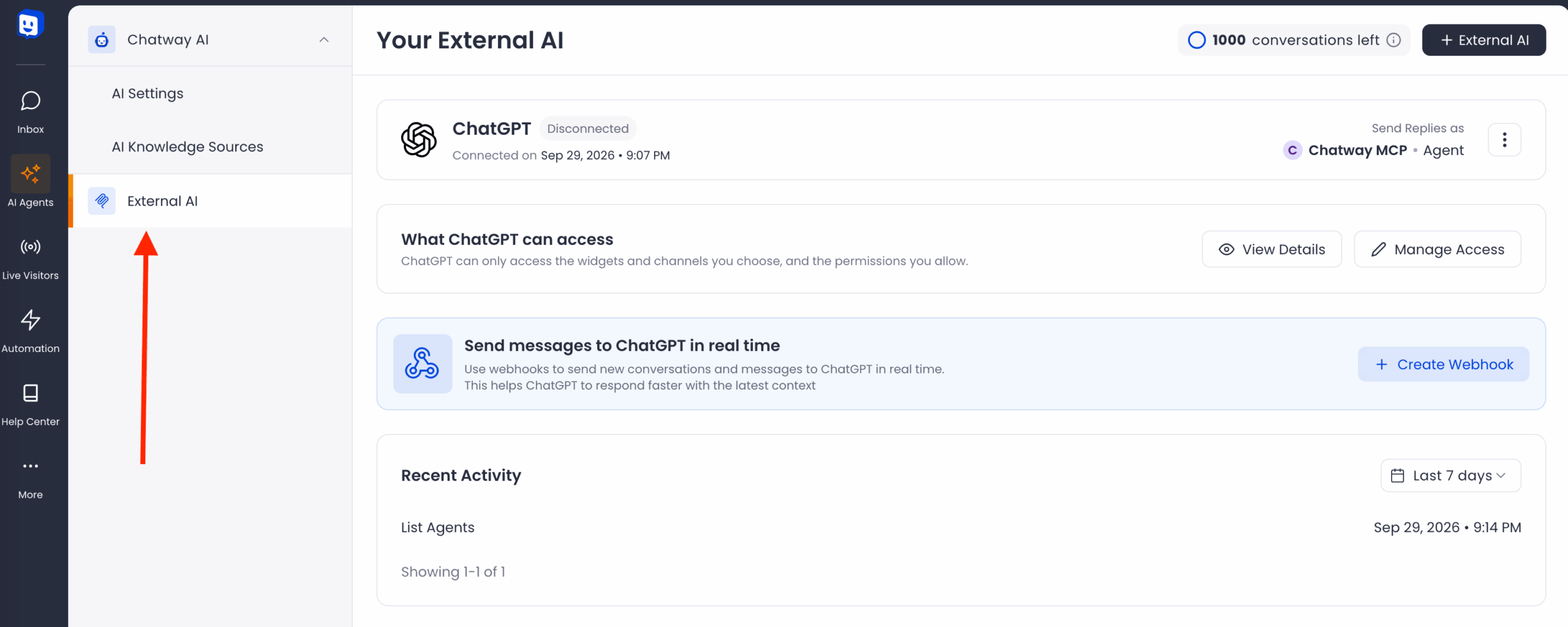
Step 2: Go to the External AI page from the navigation on the left.
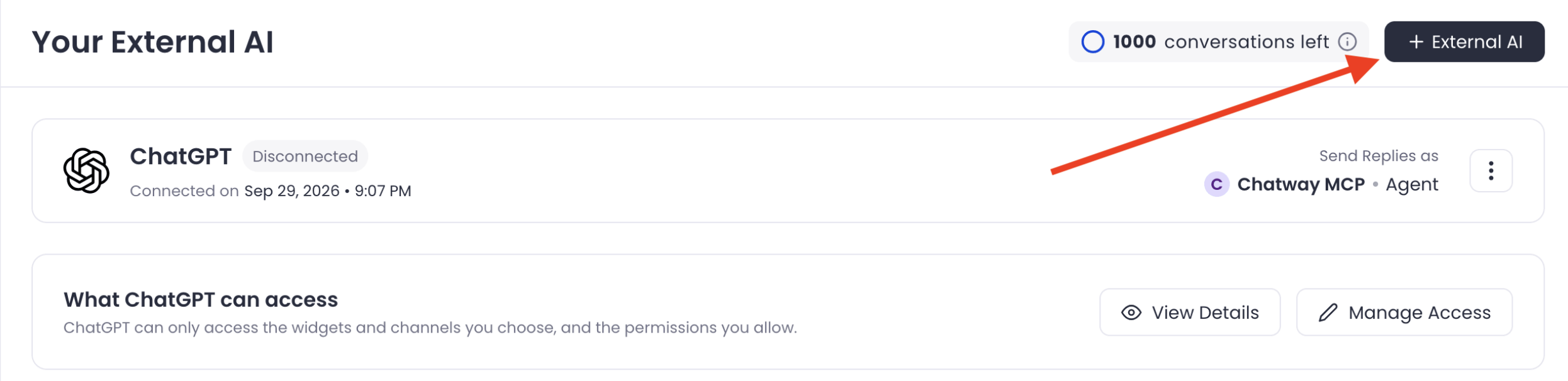
Step 3: Click on the External AI button to create a new connection:
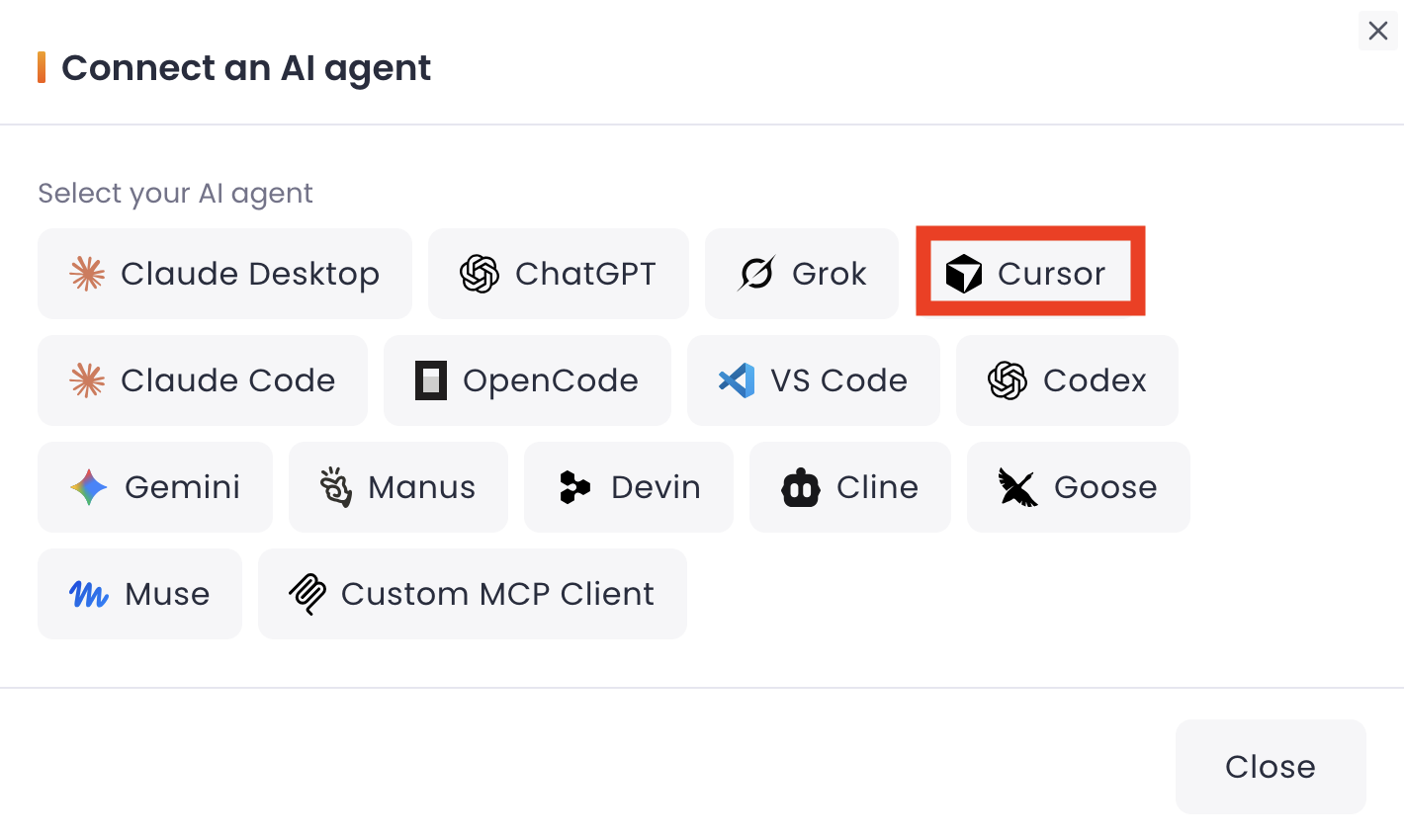
Step 4: Select the Cursor AI Agent from the list:
Step 5: Copy the Chatway MCP configuration JSON directly from your Chatway account:

2. Open the Cursor App
Step 1: Open the Cursor app, go to Customize, click on the “MCPs” tab, and click on the “New MCP Server“:

Step 2: Paste the Chatway server configuration you copied into Cursor and save it to ~/.cursor/mcp.json for global configuration, or .cursor/mcp.json for project-specific configuration.
Then, save the configuration and refresh the MCP panel:

Note: If you already have other MCP servers configured in Cursor, add Chatway to your existing mcpServers configuration without removing or overwriting your other connections.
Step 3: After saving the file, you will see a new MCP server that needs authentication. Click “Authenticate“:

Step 4: Next, you will need to authorize the connection through the pop-up. Click on the “Connect” button:

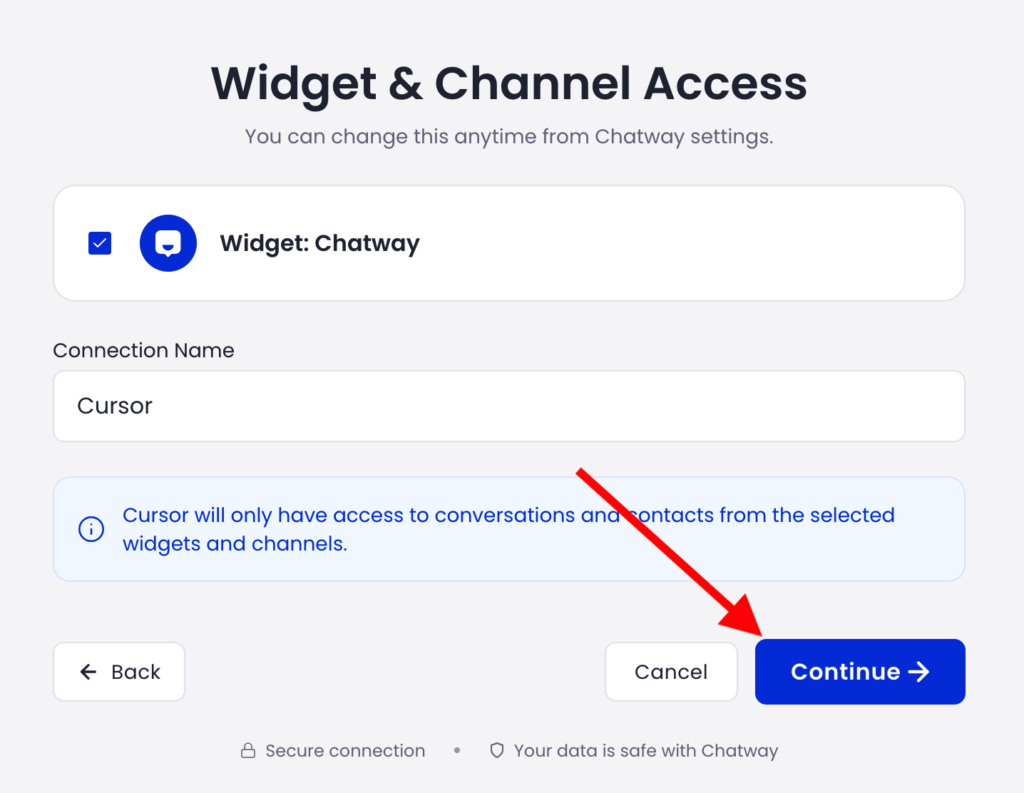
Step 5: Choose your widget, enter a connection name, and click “Continue“:
Step 6: Review the permissions that you will give to Cursor and click on the “Allow access & continue” button to allow access:

You can review and revoke the access at any time from the Chatway settings.
Step 7: Now, go back to your Chatway AI Agents page, and you will see the successfully connected Cursor agent:

3. Testing your AI agent
Now let’s see how you can use the new connection.
Step 1: Open a new conversation with your Cursor agent.
Step 2: Open Cursor Agent and enter your request. Cursor automatically makes connected MCP tools available under Available Tools and can use them when relevant.

“Find all conversations about checkout issues from the last 7 days.”
Following this example, you may receive the answer below with all relevant data and additional details:
1. Banana #53764
- Conversation ID:
1d74ad39-1e57-47c0-aab3-fa6315256e9b- Date: 2026-09-30 10:34 UTC
- Last Activity: 2026-09-30 10:59 UTC
- Status: Unresolved
- Assigned to: Chatway MCP
- Location: United States (en-US)
- Issue: The conversation is related to a checkout problem. The screenshot does not show the customer’s exact message or the specific checkout error.
I also checked for similar keywords such as “checkout”, “payment”, “cart”, and “payment failed”, but no other relevant conversations were found.

For automatic real-time replies to incoming customer messages, connect Chatway webhooks to your AI agent and use the Chatway API to send responses. Chatway MCP can be used alongside this workflow to access Chatway tools and data.

You can follow our simple visual guide on how to use Chatway webhooks here: https://chatway.app/help/for-developers/how-to-use-the-chatway-webhooks
That’s it. You can now streamline your customer communication and support workflows with the help of Cursor and Chatway MCP.