


Connecting your own AI agent to Chatway lets you automate customer conversations while keeping Chatway as the shared inbox where your team can see the complete history and take over when needed.
What can you use this integration for?
- 24/7 first-line support: answer common questions immediately, even when your team is offline.
- Use your own AI and knowledge: connect an agent that follows your instructions and uses your product documentation, business data, or internal tools.
- Qualify and route leads: collect useful details, identify intent, and hand the conversation to the appropriate person or team.
- Automate account and order questions: let your agent look up information in connected systems and return a useful answer in the Chatway conversation.
- Summarize and enrich conversations: prepare context for a human agent, add tags, or trigger your own follow-up workflow.
- Escalate safely: stop automation and leave the conversation open whenever the customer asks for a person or the AI is not confident.
Why use webhooks with MCP?
Webhooks and MCP have different jobs and work well together:
- Chatway webhooks are the trigger. Chatway notifies your endpoint in real time when a customer message arrives, so your system does not need to poll for updates.
- Chatway MCP is the agent’s context-and-action layer. After your endpoint receives the webhook and wakes your agent, the agent can use Chatway MCP tools to access the relevant conversation data and send its response back to Chatway.
This approach gives you real-time automation while keeping control of the AI model, instructions, tools, and knowledge sources. Chatway remains the central record for both AI and human support. If your agent is not MCP-compatible, you can use the Chatway Public API instead to retrieve context, send messages, and manage the conversation.
How the workflow works
- A customer sends a message in Chatway.
- Chatway sends a Message received webhook event to your endpoint.
- Your application verifies the event and wakes your external AI agent.
- The agent retrieves any additional conversation context it needs using Chatway MCP or the Public API, depending on your integration.
- The agent generates a response and uses the supported Chatway MCP tool to send it to the conversation. A non-MCP implementation can send the response with the Chatway Messages API instead.
- If your workflow rules consider the request complete, it can optionally resolve the conversation through the Conversations API. Leave the conversation open when another customer message or human follow-up is expected.
Which AI agents work with this approach?
This pattern works with Claude, ChatGPT, Gemini, and other AI systems when you run them through an API, hosted agent runtime, automation platform, or your own server process that can receive an HTTPS webhook. Your runner must stay available, invoke the model when the webhook arrives, and return the result to Chatway.
Connecting Chatway MCP to an ordinary interactive AI chat gives that chat access to Chatway while you are using it; it does not by itself create an always-running background agent. For automatic replies, use a webhook receiver plus a persistent agent runtime. The real-time loop can reply through the Chatway API, while MCP remains useful for on-demand context and actions.
Requirements
- A Chatway account with Admin or Owner access.
- An HTTPS endpoint that can receive webhook requests.
- An external AI agent that your application can wake when a webhook arrives.
- A Chatway MCP connection for an MCP-compatible agent. Follow How to connect Chatway with a custom MCP Client.
- If you use the Public API instead of, or alongside, MCP: a Chatway API key stored securely on your server.
- Secure storage for your webhook secret.
Step 1: Connect Chatway MCP to your AI agent (optional)
Skip this step if your automation uses only the Chatway Public API. MCP is needed only when your external AI agent will use Chatway MCP tools.
Connect Chatway to your MCP-compatible agent and authorize the workspace or inboxes it should access. This gives the agent the Chatway tools it needs after your webhook handler triggers it.
See How to connect Chatway with a custom MCP Client for setup instructions, and use the Chatway MCP tool reference to review the tools available to your agent.
Step 2: Generate an API key if your workflow uses the Public API (optional)
This step is required only if your implementation uses the Public API to retrieve data, send the reply, or resolve the conversation.
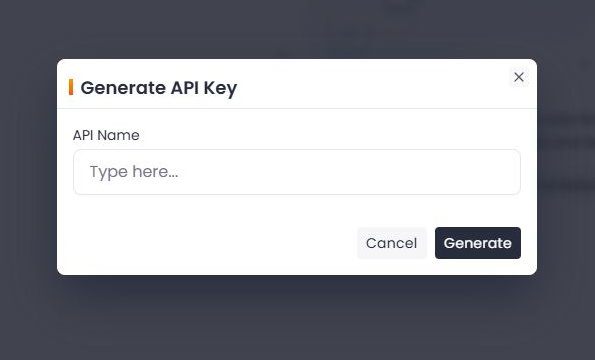
Open Settings > Developer Tools > API Keys, then click Generate API Key. Give the key a recognizable name and store it securely. Chatway displays the full key only once.
For detailed API-key instructions, authentication examples, supported endpoints, and limits, see How to use the Chatway API.
Step 3: Create a webhook
Open Settings > Developer Tools > Webhooks and click Create Webhook.
Enter:
- Webhook URL: the public HTTPS endpoint in your application that will receive Chatway events.
- Webhook Name: a name that identifies this integration, such as External AI agent.
- Subscribed Events: select Message received. You may also select Conversation created, Conversation resolved, or Agent assigned if your routing logic needs them.
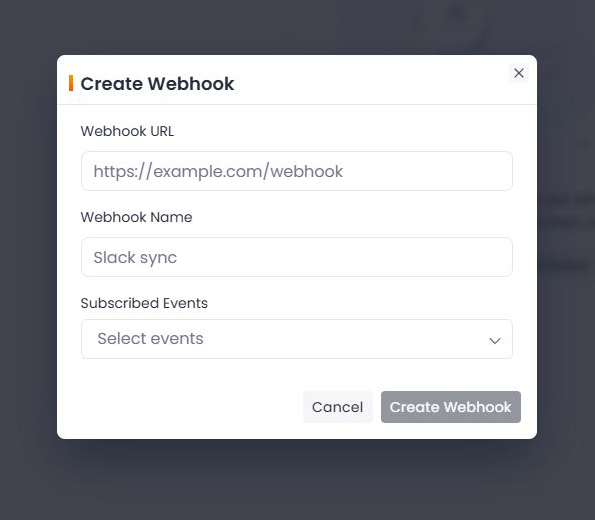
Create the webhook and save its secret immediately. Chatway displays the full webhook secret only once. Use the secret to verify that incoming webhook requests genuinely came from Chatway.
For more details, see How to use the Chatway webhooks and the webhook developer documentation.
Step 4: Receive the webhook and trigger your agent
A Message received webhook includes the customer message and the identifiers your workflow needs. The envelope field id is the stable event ID to store for deduplication. Do not use X-Chatway-Delivery-Id as the idempotency key because it changes on every retry.
{
  "id": "evt_1234567890abcdef1234567890abcdef",
  "event": "message.received",
  "data": {
    "message": {
      "id": "679f5ba4-3cbf-42eb-86dc-63566cec6b58",
      "content": "Hello, I need help",
      "attachments": []
    },
    "conversation": {
      "id": "750c42a1-1ce1-40ae-beba-4cc66f2b1023",
      "channel": "website",
      "status": "open"
    }
  }
}id: stable event ID for deduplication across webhook retries.data.message.id: the incoming Chatway message ID.data.message.content: the customer message to pass to your agent. It may be absent when the message contains only attachments.data.conversation.id: the conversation ID used to fetch context and send the reply.
Verify the signature against the raw request body, acknowledge valid delivery immediately, and do the slower AI work asynchronously. Chatway expects a 2xx response within four seconds.
Minimal Node.js example
This example uses the Chatway REST API, not MCP, to send the automated reply. The webhook wakes the application, the application invokes the hosted AI agent, and the reply is posted to the Chatway Messages API. An MCP-capable runtime can use Chatway MCP tools instead, as explained after the example.
The Express example below is a development-only demonstration of the smallest end-to-end flow: verify the webhook, prevent duplicate processing, invoke the agent, send the response, and acknowledge delivery before the AI work begins. Because it returns 202 before durably persisting the event, do not use it as a production-ready reliability pattern. Use a supported Node.js LTS release; Node.js 24 LTS is recommended for this example. Install Express with npm install express. The API URL used below—https://developers.chatway.app/api/v1/messages—is the production endpoint documented by Chatway.
const crypto = require("crypto");
const express = require("express");

const app = express();
const processedEvents = new Set(); // Use a durable store in production.

app.post(
  "/webhooks/chatway",
  express.raw({ type: "application/json" }),
  (req, res) => {
    const signature = req.get("X-Chatway-Signature");
    const timestamp = req.get("X-Chatway-Timestamp");

    if (!verifySignature(req.body, signature, timestamp)) {
      return res.status(401).send("Invalid signature");
    }

    const event = JSON.parse(req.body.toString("utf8"));
    if (event.event !== "message.received" || processedEvents.has(event.id)) {
      return res.sendStatus(204);
    }

    processedEvents.add(event.id);
    res.sendStatus(202); // Acknowledge before running the agent.
    processEvent(event).catch((error) => {
      processedEvents.delete(event.id);
      console.error(error);
    });
  },
);

function verifySignature(rawBody, signature, timestamp) {
  if (!signature || !timestamp || !process.env.CHATWAY_WEBHOOK_SECRET) {
    return false;
  }
  const numericTimestamp = Number(timestamp);
  if (!Number.isFinite(numericTimestamp)) return false;
  if (Math.abs(Date.now() / 1000 - numericTimestamp) > 300) return false;

  const digest = crypto
    .createHmac("sha256", process.env.CHATWAY_WEBHOOK_SECRET)
    .update(`${timestamp}.${rawBody.toString("utf8")}`)
    .digest("hex");
  const expected = Buffer.from(`sha256=${digest}`);
  const actual = Buffer.from(signature);
  return expected.length === actual.length && crypto.timingSafeEqual(expected, actual);
}

async function processEvent(event) {
  const { conversation, message } = event.data;
  const reply = await invokeAgent({
    conversationId: conversation.id,
    messageId: message.id,
    content: message.content || "",
    attachments: message.attachments || [],
  });

  const response = await fetch("https://developers.chatway.app/api/v1/messages", {
    method: "POST",
    headers: {
      "Content-Type": "application/json",
      "X-API-KEY": process.env.CHATWAY_API_KEY,
    },
    body: JSON.stringify({ conversation_id: conversation.id, content: reply }),
  });
  if (!response.ok) throw new Error(`Chatway reply failed: ${response.status}`);
}

async function invokeAgent(input) {
  const response = await fetch(process.env.AI_AGENT_URL, {
    method: "POST",
    headers: {
      "Content-Type": "application/json",
      Authorization: `Bearer ${process.env.AI_AGENT_API_KEY}`,
    },
    body: JSON.stringify(input),
  });
  if (!response.ok) throw new Error(`Agent failed: ${response.status}`);
  const result = await response.json();
  return result.reply;
}

app.listen(process.env.PORT || 3000);
Set CHATWAY_WEBHOOK_SECRET, CHATWAY_API_KEY, AI_AGENT_URL, and AI_AGENT_API_KEY in your server environment. Adapt invokeAgent() to the request and response format used by your provider.
Production reliability and message ordering
The in-memory Set and background promise above are intentionally minimal and should not be used as the production reliability layer. After your endpoint returns 202, Chatway considers the webhook delivered. If the AI call then fails, Chatway will not retry that successfully acknowledged delivery.
In production, verify the signature and then write the event to a durable job queue before returning 202. Use the stable event id as the unique job key. If the queue write fails, return 5xx so Chatway can retry the webhook. Configure the worker to retry temporary AI and Chatway API failures with exponential backoff and a dead-letter queue for jobs that exhaust their retries.
The following example is pseudocode illustrating production queue behavior. Replace jobs.enqueue() with your queue provider’s actual implementation.
// After signature verification and JSON parsing:
try {
  await jobs.enqueue("chatway-message", event, {
    jobId: event.id, // Durable deduplication across webhook retries.
    groupKey: event.data.conversation.id, // Preserve order per conversation.
    attempts: 5,
    backoff: { type: "exponential", delay: 1000 },
  });
  return res.sendStatus(202);
} catch (error) {
  console.error("Queue write failed", error);
  return res.sendStatus(503); // Ask Chatway to retry delivery.
}
The queue API above is provider-neutral; map these options to your queue system’s equivalent features. Configure workers so jobs with the same conversation.id run sequentially while different conversations can run in parallel. This prevents simultaneous AI calls from producing overlapping or out-of-order replies.
Prevent duplicate replies after an API timeout
A timeout from POST /messages is an uncertain outcome: Chatway may have accepted the reply even though your worker did not receive the response. Do not immediately send the same reply again. Persist the conversation ID, intended reply content or hash, event ID, and the time the send attempt began. Then call List Conversation Messages for that conversation and inspect the newest messages. If a matching agent reply created after the attempt began is present, mark the job complete. Retry only when the check shows that the reply was not created.
If the result is still ambiguous, move the job to manual review instead of risking a duplicate customer-facing message. Keep this reconciliation inside the same per-conversation queue so a later reply cannot overtake it.
If visitors commonly send several short messages in quick succession, add a brief debounce window before invoking the AI. The worker can group consecutive messages for the same conversation, fetch the latest conversation context, and generate one coherent reply instead of answering each fragment separately.
If your runner supports Chatway MCP, it can instead use list-conversation-messages to retrieve additional context and send-message to reply. The webhook is still what wakes the runner; MCP alone does not keep an interactive chat session running in the background.
Step 5: API alternative for sending the reply
If your agent does not use MCP, send the generated response to Chatway with the Messages API. Authenticate the request with your API key in the X-API-KEY header and use the conversation or contact data supplied by the webhook and Conversations API.
Refer to the Chatway API documentation for the current request fields and response schema. Keep the API key on your server; never expose it in browser-side code.
Step 6: Resolve the conversation only when your workflow calls for it (optional)
Automatic resolution is optional. Resolve a conversation only when your own workflow rules consider the request complete—for example, after a final answer that does not need human follow-up. Leave it open when the agent expects another customer message, has low confidence, or requests a human.
For a fully unattended workflow, use the Conversations API to resolve the conversation after the reply succeeds. The MCP resolve-conversation tool always requires explicit confirmation, so it is better suited to attended agent sessions than background automation. When a customer writes again, Chatway can reopen the conversation and trigger a new Message received cycle.
For human escalation through MCP, call handoff-to-human. It uses Chatway’s built-in handoff flow so your team receives the expected notifications and inbox state.
Pause automation after human takeover
Keep a durable automation_paused flag for each conversation. Set it before or at the same time that your workflow requests human handoff, and have any operator-takeover control in your own system set the same flag. Cancel queued jobs for that conversation where your queue supports cancellation. A job that is already running must check the flag again immediately before calling the AI and immediately before sending a reply; if the conversation is paused, finish the job without sending.
Apply this guard to replies sent through either MCP or the Public API. Do not assume a queued reply is safe merely because it was created before the takeover. Also do not assume that Chatway emits a dedicated escalation webhook or provides a resume operation: neither is documented currently. Keep automation paused until an explicit action in your own integration clears the flag, or until Chatway developers confirm and document a supported resume signal.
Avoid reply loops and duplicate responses
- Trigger the AI workflow from Message received, not Message sent.
- Ignore messages created by your own MCP or API integration.
- Store processed event or message IDs and make processing idempotent.
- Return a successful response to Chatway quickly, then process longer AI work asynchronously.
- Add timeouts, retries, rate-limit handling, and a human fallback.
- Review delivery attempts on the Webhook Logs page.