Customer support workloads rarely stay balanced by themselves. One agent may finish several short conversations while another remains tied up with a complex issue. New conversations continue to arrive, and manual assignment can easily concentrate too much work on the same person.
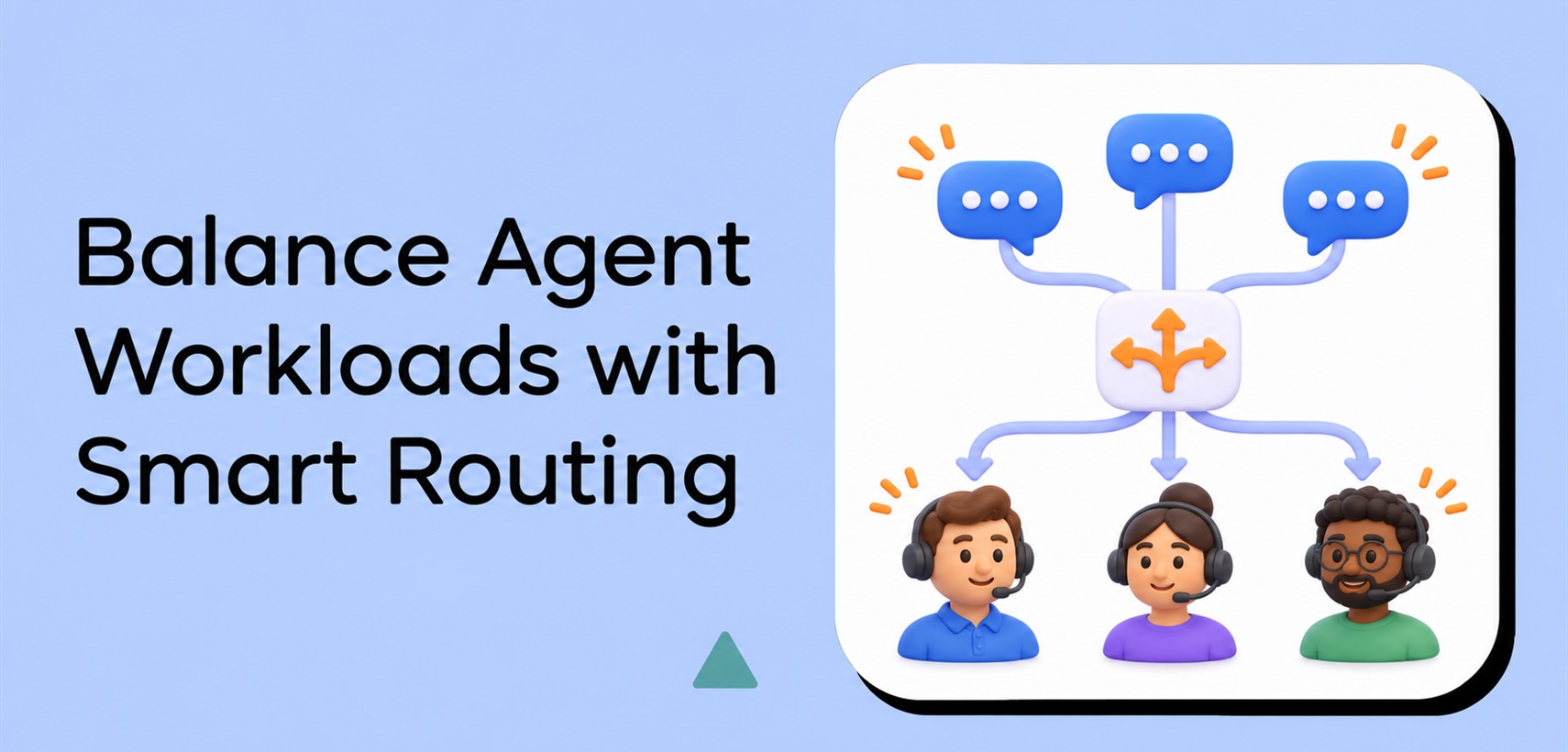
Chatway now gives support teams more control over how incoming conversations are distributed. Each inbox can use manual assignment, round-robin routing, or load-based routing. The same rules can also work with Chatway Automations when a workflow assigns a conversation to a team.
The result is a clearer way to route chats to the right available people while reducing manual triage and avoiding unnecessary agent overload.
Why agent workload balancing matters
Fast customer support depends on more than the total number of agents online. It also depends on how work is distributed between them.
Without a routing system, new conversations may be picked up by the most active agent, assigned repeatedly to the same person, or left waiting while teammates assume someone else will handle them. This creates uneven workloads and makes response times harder to predict.
Smart routing helps teams:
- Share incoming conversations more consistently.
- Reduce the risk that one agent receives too many active chats.
- Make better use of available team capacity.
- Route specialized questions to the right team.
- Keep a predictable process across different inboxes.
Routing does not replace good staffing, escalation rules, or team communication. It gives those processes a reliable starting point. For a broader operating model, see our practical live chat customer support workflow.
Choose the routing method that fits your team
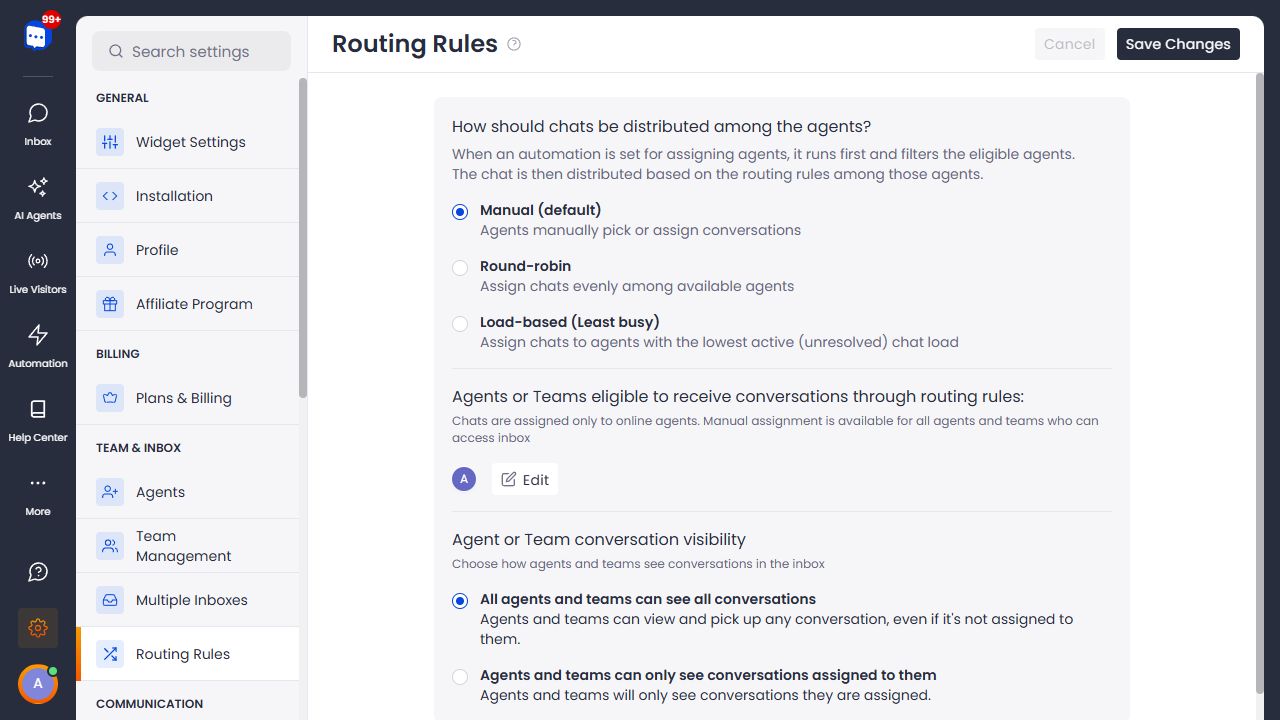
Chatway offers three routing options for each inbox.
Manual assignment
Manual is the default option. Agents pick conversations from the inbox or a teammate assigns conversations directly.
This approach works well for small teams, highly specialized support, or workflows where someone needs to review every conversation before choosing an owner. When an automation assigns a team to an inbox that uses manual routing, the conversation stays assigned to the team until an agent is selected manually.
Round-robin routing
Round-robin distributes new conversations evenly among available eligible agents. Chatway assigns a chat to each agent in turn, then repeats the sequence.
For example, if Agents A, B, and C are online and eligible, the first conversation goes to A, the next to B, and the next to C. The following conversation returns to A.
Round-robin is useful when agents handle similar types of questions and the team wants a simple, predictable distribution method.
Load-based routing for the least-busy agent
Load-based routing looks at each available eligible agent’s active, unresolved conversations. A new chat is assigned to the agent with the lowest current load.
This option is useful when conversations vary in complexity. An agent working on several unresolved cases is less likely to receive another chat while a teammate has more capacity.
Configure routing separately for every inbox
Teams often use different inboxes for different websites, regions, brands, or departments. Chatway lets each inbox have its own routing configuration.
A Sales inbox can use round-robin routing between sales agents, while a Technical Support inbox uses least-busy routing for specialists handling longer conversations. When multiple inboxes are available, the Routing Rules page displays an inbox selector so each setup can be managed independently.
Only agents and teams with access to the selected inbox can participate in its routing. You can also choose which of those agents or teams are eligible to receive conversations automatically. Agents who are not selected for automatic routing can still receive a manual assignment when they have access to the inbox.
To organize customer conversations before configuring routing, read how to use multiple inboxes in Chatway.
Use teams without losing load balancing
Teams make it easier to route conversations to a department rather than a single named person. A Billing automation can assign the Billing team, for example, while the inbox routing rule determines which eligible Billing agent should receive the conversation.
When both individual agents and teams are eligible in an inbox, Chatway distributes conversations between the eligible agents, including eligible members of those teams. Each agent participates as an individual in the routing sequence.
This gives account owners and admins two levels of control:
- The automation or inbox determines which group of agents is relevant.
- The routing rule determines which available eligible agent in that group receives the conversation.
Apply routing rules when an automation assigns a team
Chatway Automations can assign conversations based on visitor activity, tags, quick replies, or other workflow conditions. Smart routing now works with these assignments.
When an automation assigns a team containing several agents, Chatway applies the selected inbox routing rule only to eligible members of that team. Other agents in the inbox are not considered for that assignment.
For example, suppose an inbox includes Agents A, B, C, and D. An automation recognizes a billing question and assigns Team A, which contains Agents A and B. If the inbox uses round-robin, Chatway chooses between A and B. If the inbox uses least-busy routing, Chatway compares the active unresolved load of A and B and assigns the conversation to the less busy eligible agent.
For an introduction to triggers and actions, see how to use automations and create smart workflows in Chatway.
What happens in each assignment scenario
Routing behavior depends on whether the automation selects an agent, a team, or nobody.
- A specific agent is selected: The conversation is assigned directly to that agent. Load balancing is not applied.
- A team with several agents is selected: The inbox’s round-robin or least-busy rule is applied only to eligible members of that team.
- A team with one agent is selected: The conversation is assigned to that agent.
- No automation selects an agent or team: The normal inbox routing rule is applied to eligible agents in the inbox.
- The inbox uses manual routing: The selected team remains assigned, but no agent is chosen automatically.
- An agent is already assigned: A later automation keeps that assignment if it selects the same agent or a team that includes the agent. It changes the assignment only when it selects a different agent or a team that does not include the current agent.
These rules prevent an automation from unnecessarily replacing a valid assignment while still allowing later workflows to send a conversation to a genuinely different destination.
Control who can see each conversation
Routing and visibility solve different problems. Routing decides who receives a conversation. Visibility decides what conversations agents and teams can see in the inbox.
For each inbox, Chatway lets you choose between:
- Allowing all assigned agents and teams to see all conversations.
- Allowing agents and teams to see only conversations assigned to them.
The first option makes it easy for teammates to pick up, review, or assist with any conversation. The second limits the inbox view and can reduce noise for teams that work from their individual assignments.
Choose the option that matches how your support operation collaborates. Owners retain the broader access needed to manage the workspace.
A practical setup for a growing support team
Consider a support operation with three inboxes:
- Sales: Round-robin routing keeps new leads distributed evenly.
- Technical Support: Least-busy routing accounts for longer unresolved cases.
- Billing: An automation assigns the Billing team when a visitor selects a billing quick reply, then least-busy routing chooses an available Billing agent.
The setup gives each department a distribution model suited to its work while preserving a consistent process. Managers can adjust eligibility, team membership, and visibility without rebuilding every automation.
To learn how visitor choices can route a chat to a department, see how to route conversations to agents or teams in Chatway.
How to set up smart routing in Chatway
Open Routing Rules in your Chatway dashboard, select the relevant inbox, and choose Manual, Round-robin, or Load-based (Least busy). Then select the agents and teams that are eligible for automatic assignment, choose the preferred conversation visibility, and save the changes.
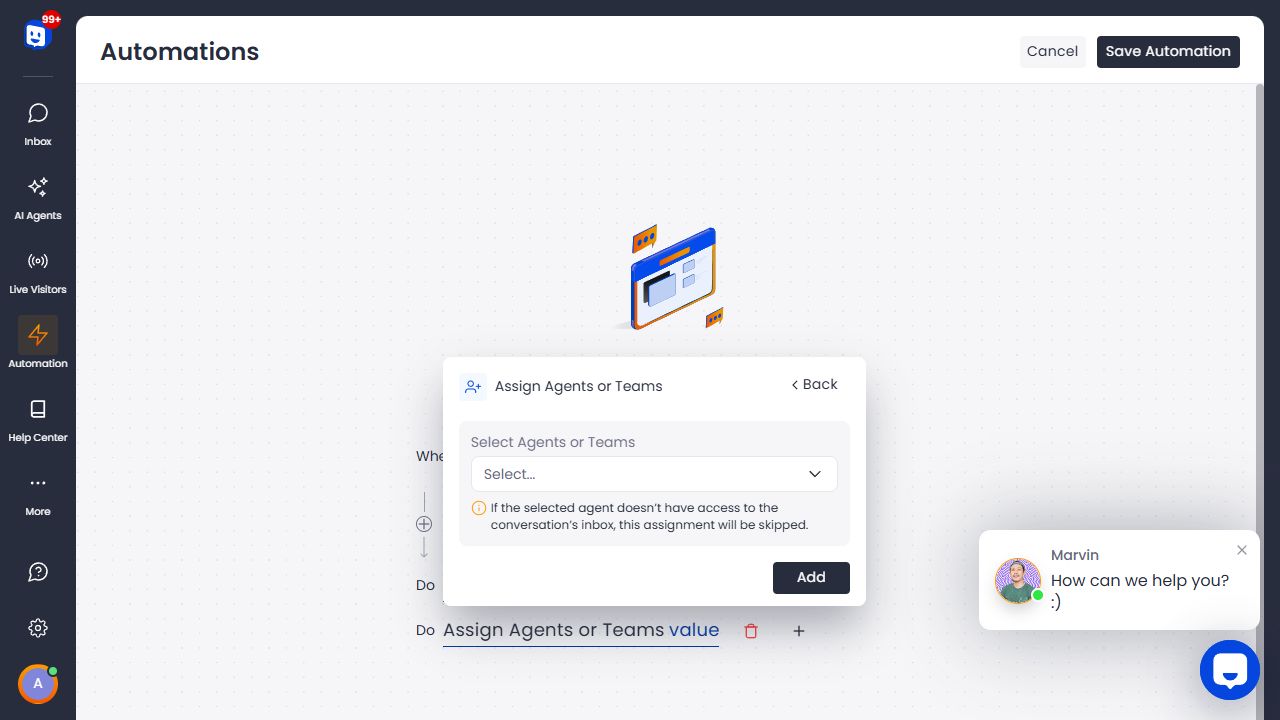
To combine routing with a workflow, open Chatway Automations, create or edit an automation, and add the Assign Agents or Teams action. Select an agent or team with access to the conversation’s inbox, save the action, and activate the automation.
Test the setup with a non-production conversation. Confirm that the automation conditions match, at least one eligible agent is online, and the resulting assignment follows the selected inbox rule.
For every setting and edge case, follow the complete guide: How to balance agent workload with routing rules and automations in Chatway.
Frequently asked questions
Can each Chatway inbox use a different routing rule?
Yes. If your account has multiple inboxes, you can configure routing separately for each inbox.
Does automatic routing assign offline agents?
No. Automatic routing considers eligible agents who are online. Agents with inbox access can still be assigned manually.
Does load balancing apply when an automation selects a specific agent?
No. A specific agent selected by an automation receives the conversation directly.
What happens when an automation selects a team?
If the team has multiple eligible agents and the inbox uses round-robin or least-busy routing, Chatway applies that rule only within the selected team. If the inbox uses manual routing, the team remains assigned and an agent is chosen manually.
Are routing rules available on every plan?
Routing rules are available on the Plus plan and during the free trial.
Give every conversation a clear path
Smart routing helps a support team respond with less manual coordination. Round-robin creates an even sequence, least-busy routing responds to active workload, and automation-aware team assignment keeps specialized conversations within the right group.
Start with one inbox, choose the routing method that fits its work, and test it with your team. Then expand the setup to other inboxes and automation workflows as your support operation grows.
Ready to balance your support workload? Read the step-by-step routing guide, then sign up for Chatway and configure your first routing rule.