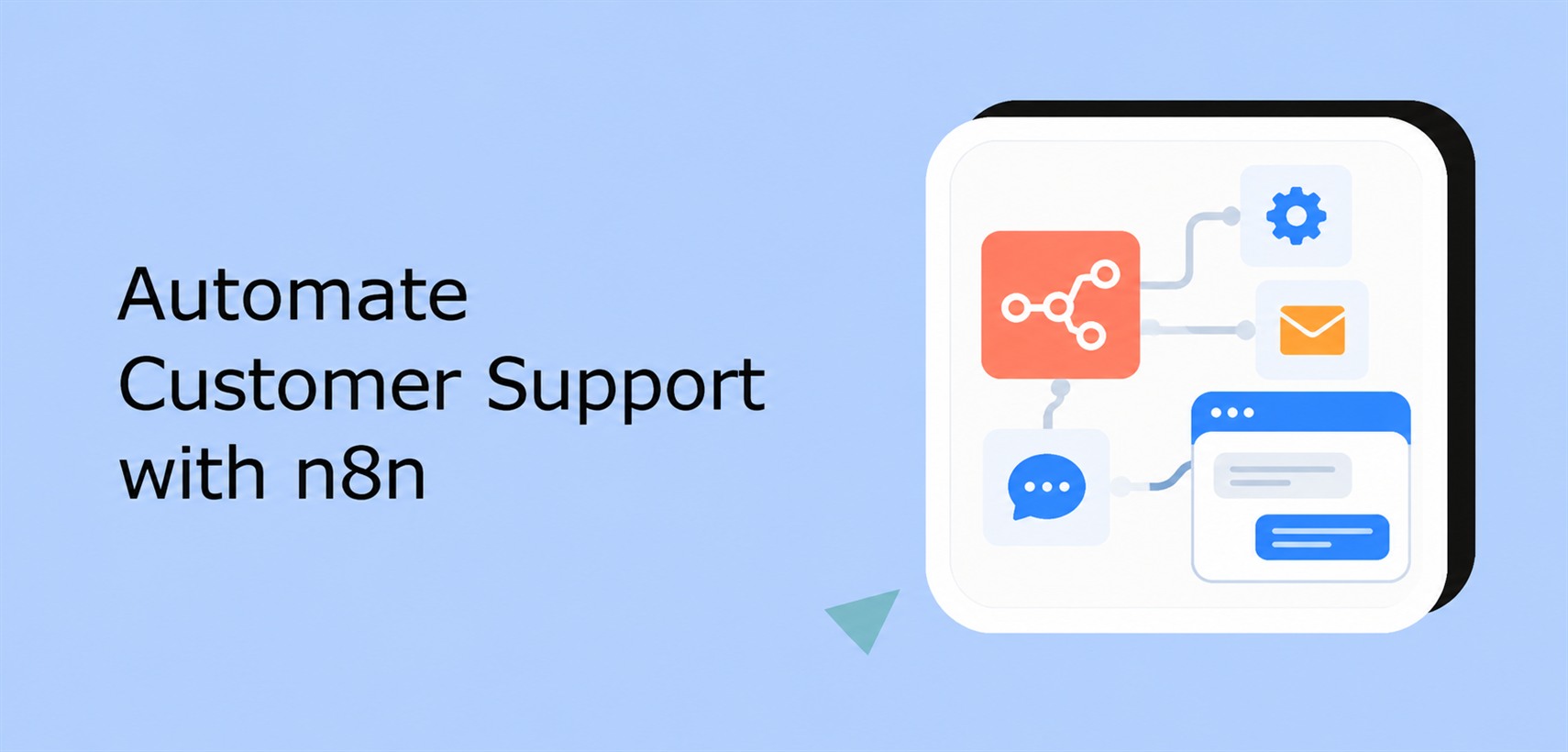
Chatway now has a verified n8n integration that connects customer conversations with the apps, data, and AI tools businesses already use. Teams can automate support alerts, synchronize contacts, create AI reply suggestions, send approved messages, and manage conversations without building every connection from scratch.
Chatway brings website live chat, WhatsApp, Instagram, Facebook Messenger, and email into one shared inbox. n8n extends that inbox into a broader automation layer. An event in a customer conversation can immediately start work in another system, while actions in other systems can update supported information in Chatway.
The integration is built and maintained by Chatway and verified by n8n. It is available through the Chatway Live Chat integration page on n8n.
Connect Chatway with more than 2,000 apps and services
n8n is a workflow automation platform for connecting applications, APIs, databases, and AI tools. Instead of moving information manually between customer support and the rest of the business, teams can create workflows that respond to Chatway activity in real time or run on a schedule.
A business can notify a team in Slack when a conversation starts, add a new contact to Google Sheets or a CRM, ask an AI agent to draft a response, or resolve a conversation when related work is completed elsewhere. These workflows can complement the existing tools available through Chatway integrations and the Chatway developer platform.
Two Chatway nodes for triggers and actions
The integration includes two complementary nodes:
- Chatway Trigger starts a workflow when an event occurs in Chatway.
- Chatway Live Chat performs a supported Chatway action inside a workflow.
Chatway Trigger supports events such as new conversations, received or sent messages, resolved conversations, agent assignments, contact changes, form submissions, tags, custom data, and Chatway automation events.
Chatway Live Chat can retrieve conversations and messages, create or update contacts, list teammates and widgets, send a customer reply or private note, and resolve a conversation. It can also be used as a tool by an n8n AI Agent.
Together, these nodes support both directions of automation: Chatway can start work in another system, and another system can perform a supported action in Chatway.
Automatically alert your team about new conversations
A simple first workflow sends a Slack notification whenever a visitor starts a new conversation:
Chatway Trigger (conversation.created) -> Slack (Send a message)The notification can include the visitor’s name, channel, conversation status, and other fields from the trigger payload. Teams can send alerts to Sales, Support, Billing, or another channel based on the widget, inbox, message content, or business rules.
This workflow reduces the need to watch several dashboards and helps the right team respond sooner. It also provides a useful low-risk test before building workflows that update data or send customer-facing messages.
Synchronize Chatway contacts with other tools
Contact information collected through Chatway can be sent to Google Sheets, a CRM, an email platform, or an internal database. For example:
Chatway Trigger (contact.created) -> Google Sheets (Append row)A workflow can also run on a schedule and retrieve existing Chatway contacts in batches. This can support reporting, customer-data maintenance, lead follow-up, and systems that need a regular export.
Teams should map only the fields their destination system needs and apply the same privacy and access rules they use for other customer information.
Add AI reply suggestions without removing human control
The Chatway Live Chat node can be used as a tool by n8n AI Agents. One practical starting point is to generate a suggested response and add it to the Chatway conversation as a private note:
Chatway Trigger (message.received) -> AI Agent -> Chatway Live Chat (Message -> Send -> Private Note)The draft appears inside the conversation for a human teammate to review. This gives agents a faster starting point while keeping the final response under human control.
The AI agent can be connected to approved knowledge sources, product information, or internal workflows. Teams should define escalation rules for questions the model cannot answer confidently and avoid sending sensitive information to tools that are not approved for that data.
For more ideas about connecting AI systems with customer conversations, see how to automate Chatway replies with an external AI agent.
Build connected customer-support workflows
After a team is comfortable with alerts and reply suggestions, it can add approval steps or business rules before sending a customer-facing response. Other workflows can resolve conversations when work finishes in another system, update a contact when CRM data changes, or create a follow-up task for a specific team.
Useful examples include:
- Notify Slack when a new conversation starts.
- Add new Chatway contacts to Google Sheets or a CRM.
- Generate an AI response and save it as a private note.
- Send an approved reply to the visitor.
- Resolve a Chatway conversation when an external ticket closes.
- Export contacts or conversation data on a schedule.
For a broader approach to planning routing, escalation, quality checks, and support metrics, read the live chat customer support workflow guide.
No manual webhook setup is required
Chatway Trigger handles its webhook automatically. When a workflow is activated, n8n registers the webhook in Chatway. When the workflow is deactivated, n8n removes it.
Users should not create a duplicate webhook manually in Chatway Developer Tools. A self-hosted n8n instance must be reachable through a public HTTPS URL; Chatway cannot deliver webhook events to localhost, a direct IP address, or plain HTTP.
Each active Chatway Trigger workflow uses one Chatway webhook. A Chatway workspace can have up to 10 webhooks in total. Webhook deliveries are signed, and the Chatway Trigger node checks the signature and timestamp automatically.
How to connect Chatway with n8n
Only a Chatway Owner or Admin can create the API key used by n8n. Open the Chatway API Keys page directly, or open Settings and select API Keys under Developer Tools.
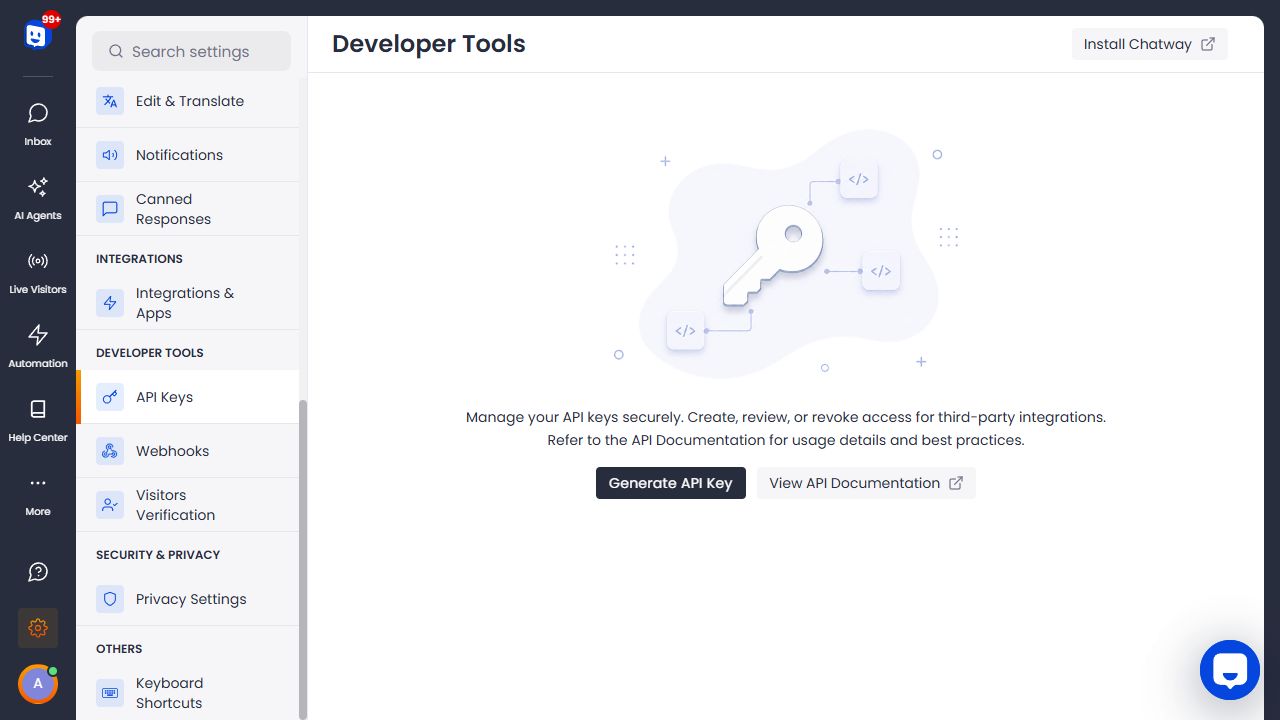
Generate an API key with a recognizable name, copy it when it appears, and store it securely. Chatway displays the full key only once. For detailed guidance about API keys and supported endpoints, read How to use the Chatway API.
In n8n, open a new or existing workflow and click + to open the Nodes panel. Search for Chatway Live Chat, choose the version marked with the Verified badge, and install it. An n8n instance owner may need to complete the first installation.
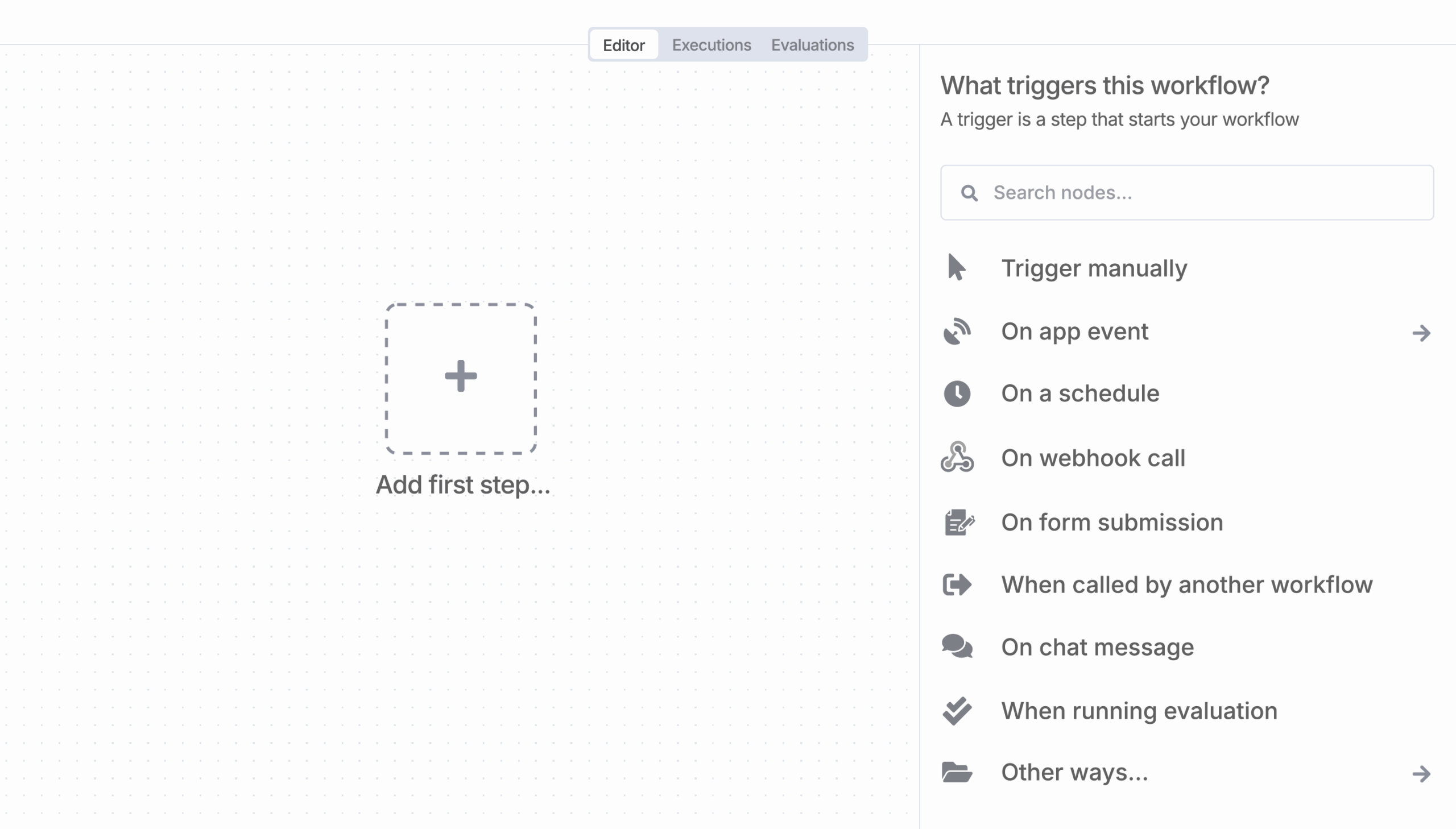
Add Chatway Trigger or Chatway Live Chat to the workflow, create a new Chatway credential with the API key, and configure the event or action. Save and activate the workflow, then test it with a non-production conversation and review the execution history.
For every field and step, follow the complete guide: How to connect Chatway with n8n and automate customer support workflows.
Frequently asked questions
Is the Chatway n8n integration available on the Free plan?
Yes. Chatway API access and webhooks are available on all plans, including Free.
Do I need to create a webhook manually?
No. Chatway Trigger registers the webhook automatically when the workflow is activated and removes it when the workflow is deactivated.
Can n8n send replies to Chatway visitors?
Yes. Chatway Live Chat can send a customer reply or add a private note. Use private notes or a human approval step while testing AI-generated responses.
Can I use Chatway with an n8n AI Agent?
Yes. The Chatway Live Chat node can be used as an n8n AI Agent tool for supported operations such as retrieving conversations, managing contacts, and sending messages.
Does a self-hosted n8n instance need a public URL?
Yes for trigger workflows. The webhook URL must use HTTPS and be reachable from the public internet.
Turn customer conversations into connected workflows
Chatway is the communication layer where customer conversations happen. n8n connects those conversations with the systems and AI tools that help a team act on them.
Start with a low-risk workflow such as a Slack alert or a private AI reply suggestion. Test the complete flow, review the data being shared, and add automation gradually.
Ready to automate customer support with Chatway and n8n? Read the step-by-step setup guide, then sign up for Chatway and build your first connected workflow.