



Bring Customer Conversations into VS Code
- Manage website live chat, WhatsApp, Facebook Messenger, Instagram, and email conversations.
- Investigate customer-reported bugs, review support conversations, and access customer feedback directly from VS Code.
- Get conversation summaries and customer details without switching to Chatway.
- Hand off conversations to human agents when needed.
Chatway Free plan supported · Secure OAuth connection
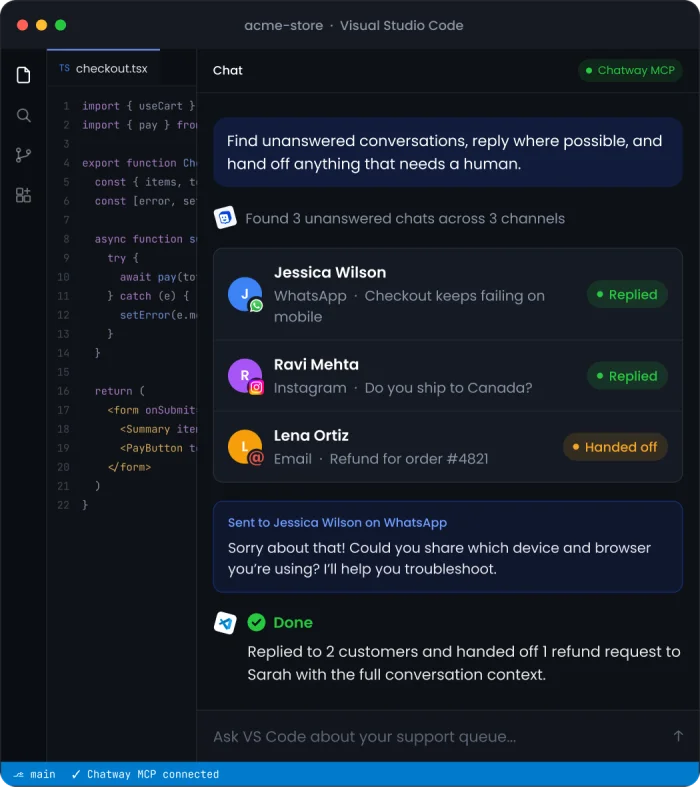
Work with Chatway from VS Code
Connect Chatway to VS Code using MCP and access your support workspace while you work. Search conversations, check customer history, analyze issues, and perform supported Chatway actions using natural language.
Your AI can work across website live chat, WhatsApp, Messenger, email, and Instagram, so you can investigate support questions and help respond to customers without switching between tools. Your data stays under your control, with authenticated and permission-based access. You can revoke the connection whenever you need.



How do I connect Chatway to VS Code?
Connect your Chatway workspace to VS Code in just a few steps. Once connected, VS Code can access the Chatway data and actions available to your account.
1 Set up the connection
Add Chatway as an MCP connection
Open your AI assistant's MCP or connector settings and add Chatway. Depending on the AI tool you're using, you may be able to add Chatway directly or enter the Chatway MCP connection details manually.

2 Work with your Chatway data
Ask VS Code to do anything with Chatway
Once the connection is active, you can ask your AI assistant about your conversations, customers, support issues, and other information available through Chatway.
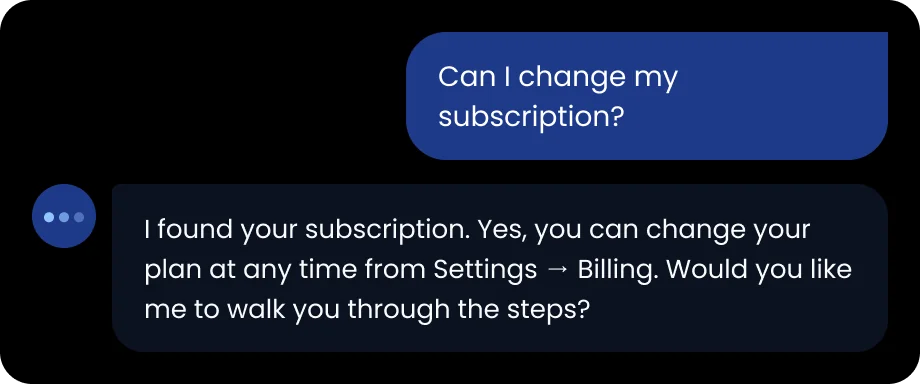

Example prompts
Click a prompt to copy itWhy Connect VS Code Desktop to Chatway?
Connecting VS Code to Chatway brings customer context directly into your development workflow.
Get Customer Context
Find relevant customer conversations without manually searching through Chatway. VS Code can surface customer history, previous interactions, reported issues, and conversation context while you're working on your product.
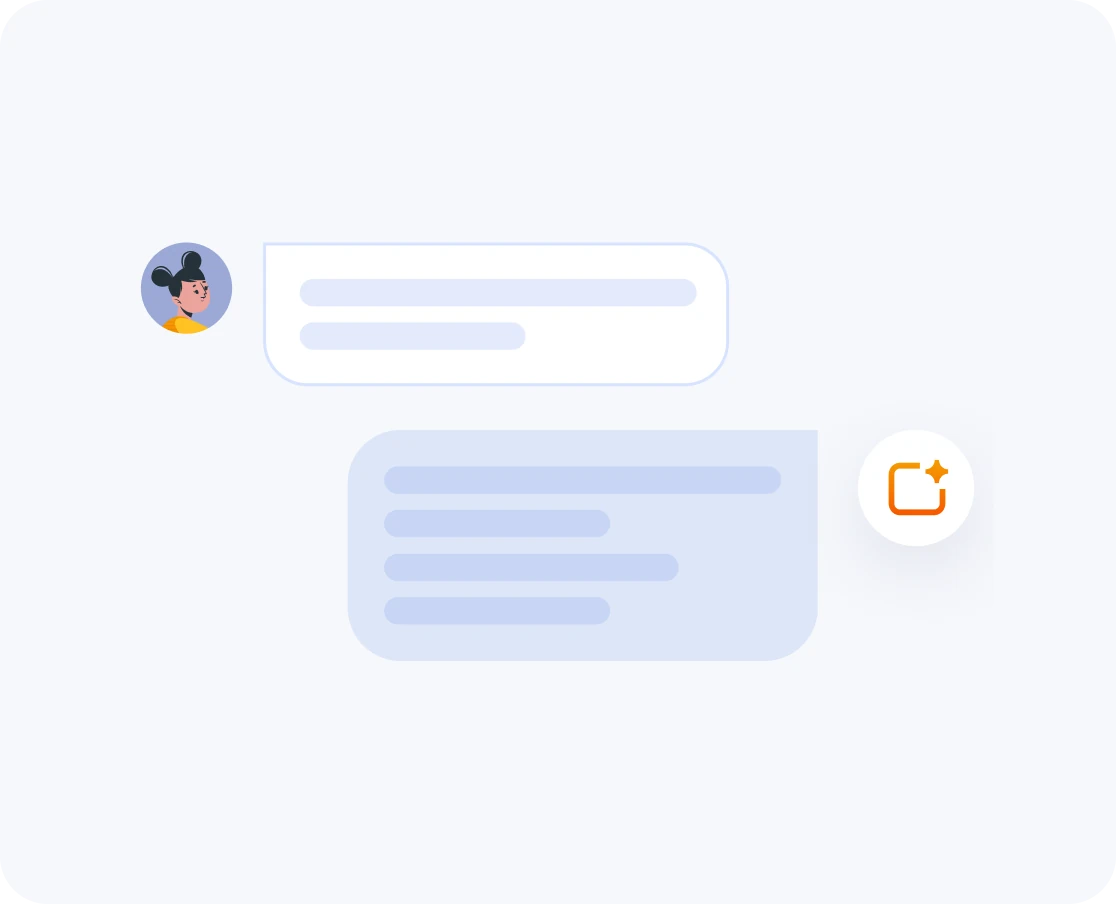
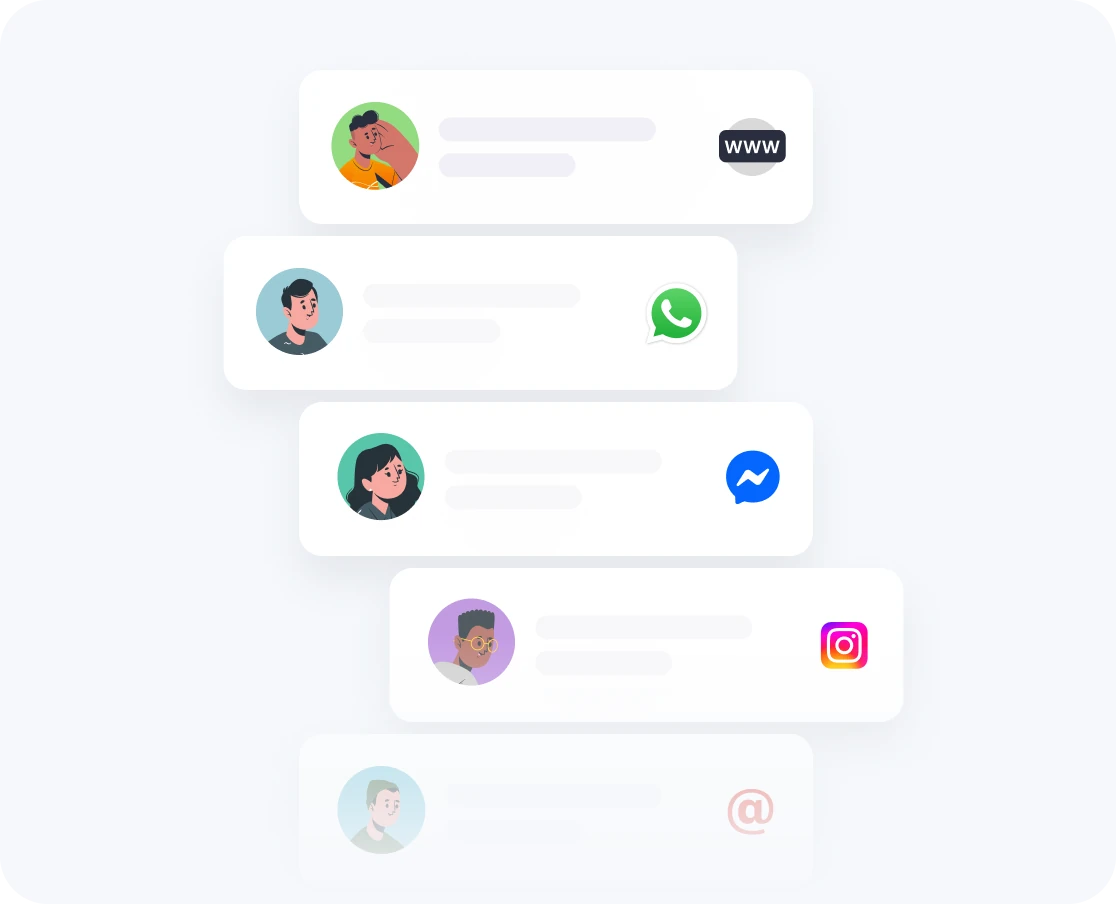
Manage Conversations Across Channels
Work with conversations from website live chat, WhatsApp, Messenger, email, and Instagram in one place. Search, review, and respond to customer messages without switching between platforms. For example: “Find all unanswered WhatsApp conversations from today.”
Hand Off to Your Team Anytime
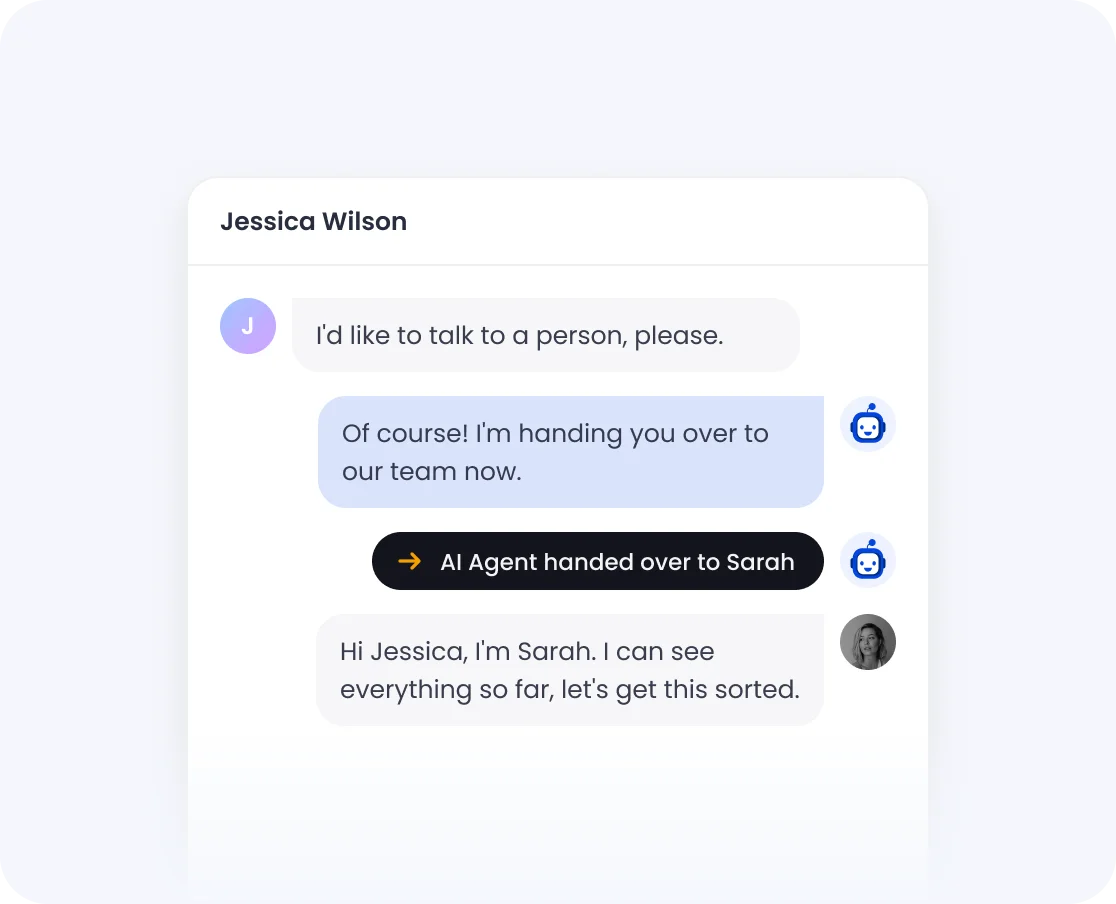
When a conversation needs a person, hand it over. Your team picks it up in the Chatway web or mobile app with the full context, including what VS Code surfaced, so customers never have to repeat themselves.
Investigate Customer-Reported Issues
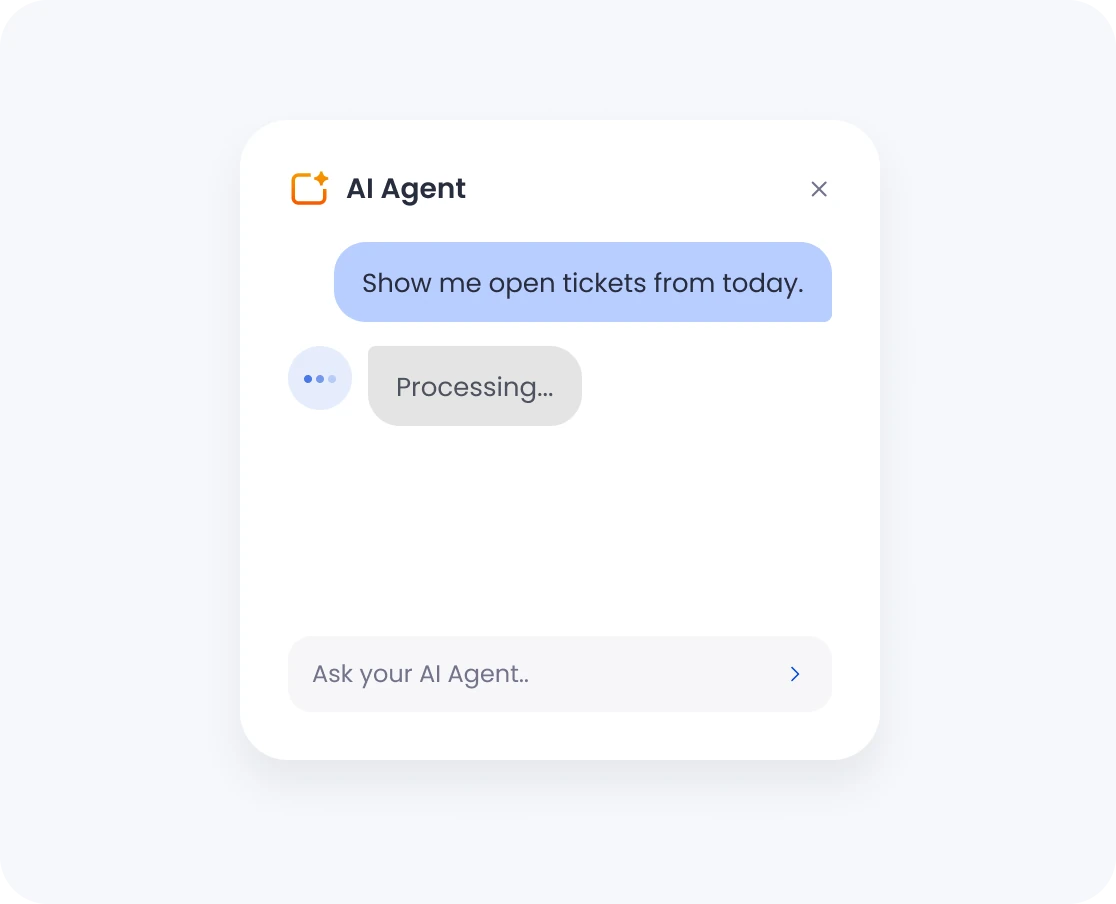
Search your support data for bugs, feature requests, and recurring problems using natural language. Find conversations related to a specific feature, product area, or release and get the context you need to investigate.
Get Real-Time Updates with Webhooks
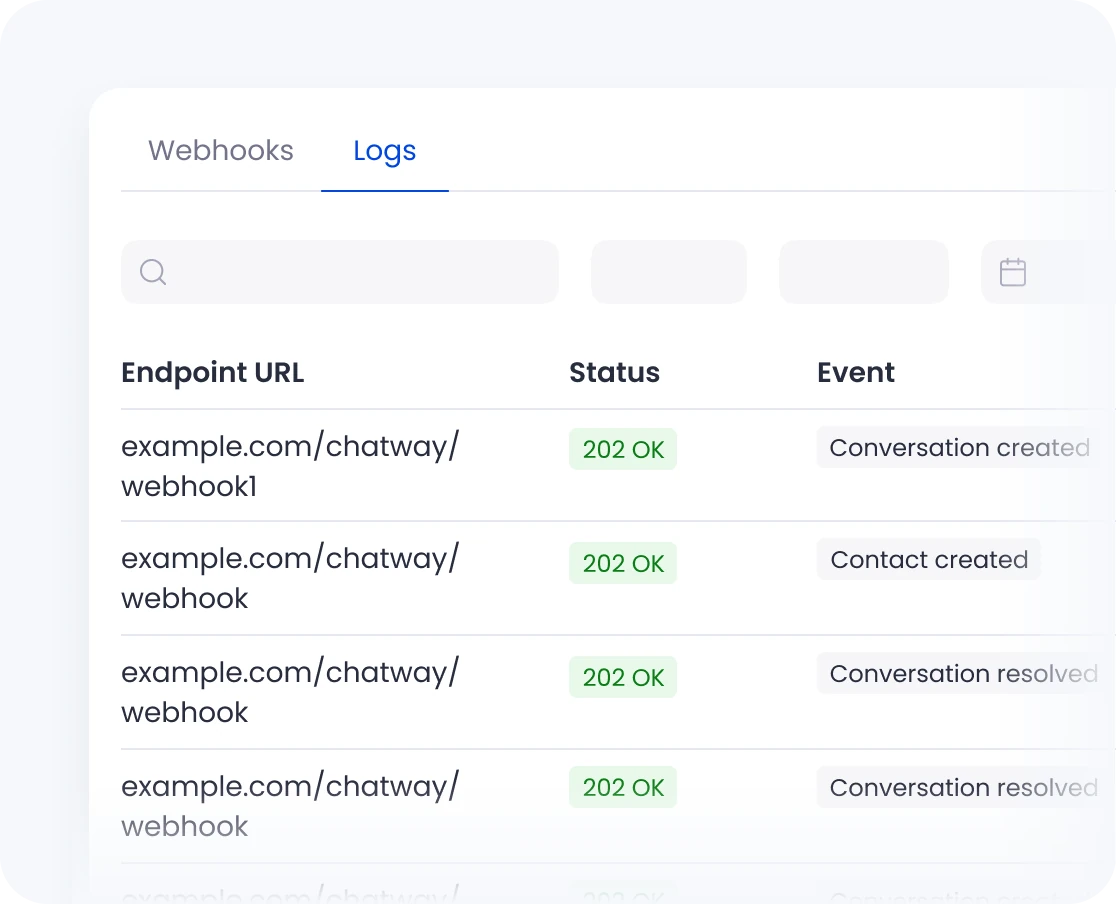
Keep your AI workflow connected to what's happening in Chatway. Webhooks send real-time events when conversations, contacts, or other supported data change, so your AI tools can react to important updates without constantly checking your workspace.
Connect Customer Feedback to Your Code
Understand what customers are saying about the product you're building. Search conversations, identify recurring pain points, and bring real customer feedback into your development workflow.
Work Faster Without Switching Tools
Bring customer context into VS Code instead of switching between your development environment and Chatway. Whether you're investigating a reported bug, researching a feature request, or looking for customer feedback, VS Code can surface the Chatway data you need - right where you're already working.
Connect VS Code to Chatway with MCP
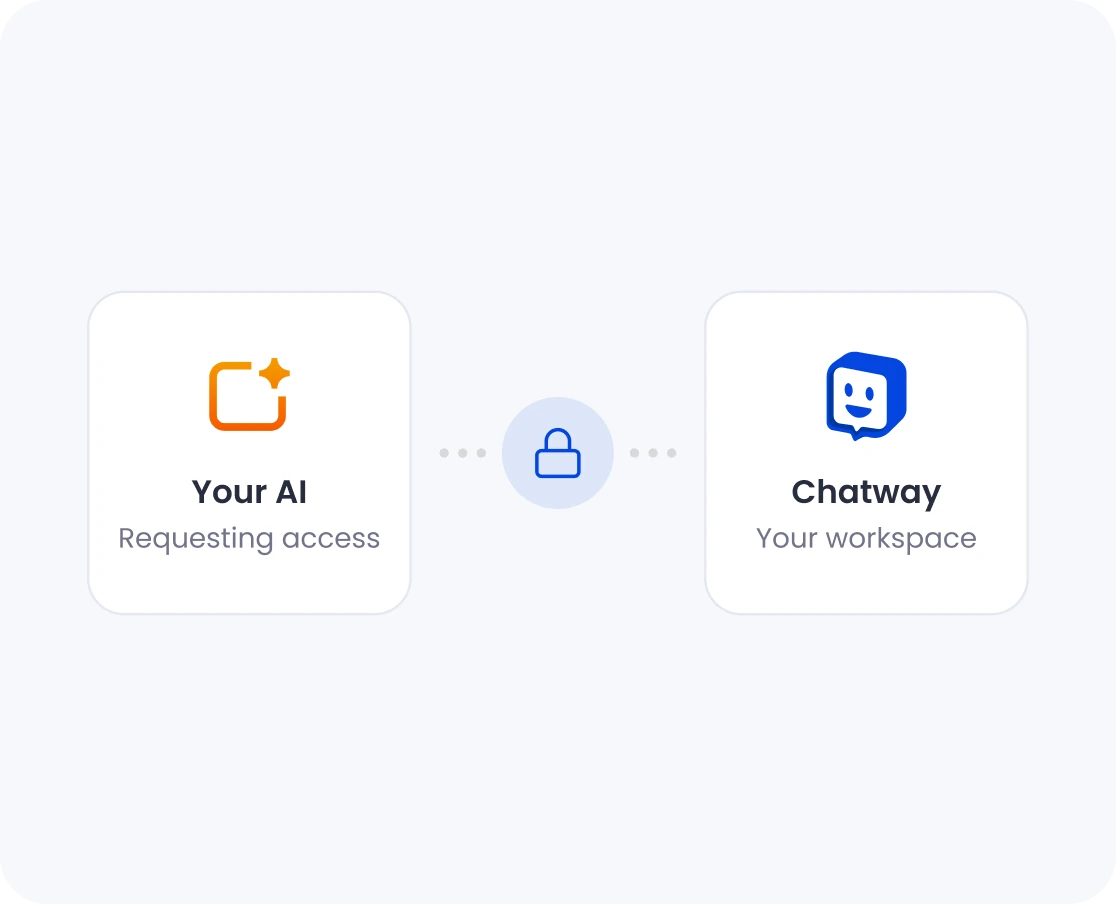
Chatway uses the Model Context Protocol (MCP) to connect VS Code with your Chatway workspace. MCP connects VS Code directly to Chatway, allowing it to access your Chatway workspace and perform supported actions on your behalf. Learn more about MCP
 Claude Desktop
 ChatGPT
 Gemini
 Grok
 Cursor
 Claude Code
 OpenCode
 VS Code
 Codex
 Manus
 Devin
 Cline
 Goose
 Muse
 Any MCP Client
Manage Chatway Without Leaving VS Code
VS Code integration brings the power of your Chatway workspace directly into your AI workflow.
Find Any Conversation Instantly
 Find Any Conversation Instantly
Search conversations using natural language instead of filters and keywords. Ask VS Code to find threads about a specific topic, from a particular customer, or within a date range – and get the information you need without navigating the Chatway UI.
Identify Patterns & Trends
 Identify Patterns & Trends
Let VS Code analyze your support conversations to identify recurring questions, common pain points, and customer feedback trends. Turn large volumes of customer interactions into clear, useful insights without manually reviewing conversations.
Resolve Issues Faster
 Resolve Issues Faster
Find unresolved conversations where customers are waiting, identify recurring support issues, and manage supported Chatway workflows directly from your AI workflow. VS Code helps you stay on top of your queue without switching between tools.
Surface Customer History
 Surface Customer History
Get customer context before responding – including past interactions, previous issues, and conversation history. VS Code can bring relevant information forward so your team can respond with more context and personalization.
Secure & Authorized Access
 Secure & Authorized Access
Your Chatway data stays under your control. The MCP integration uses secure authentication and controlled access to supported Chatway capabilities. Revoke access whenever you no longer need the connection.
Works with Any MCP Client
 Works with Any MCP Client
VS Code is just one way to connect to Chatway. Chatway's MCP integration works with Claude Desktop, Grok, Claude Code, VS Code, Codex, Manus, Devin, Cline, Goose, and other MCP-compatible clients.


Ready to work with Chatway from VS Code?
Follow these simple steps to connect VS Code to Chatway using MCP. You'll be up and running in minutes, ready to work with your support data through AI.
Frequently asked questions
Chatway MCP lets you connect AI assistants like Claude, ChatGPT, Cursor, Gemini, and other MCP-compatible tools to your Chatway workspace. Your AI can access your conversations, contacts, and other Chatway data, and perform supported actions.
You can ask your AI to search and summarize conversations, find customer information, manage contacts, and take actions in Chatway. With webhooks enabled, your AI can also respond to customers in real time.
Yes. Chatway MCP is available on the Free plan, so you can connect your AI assistant to Chatway and start working with your conversations and support data without upgrading your plan.
Your AI can work with conversations from website live chat, WhatsApp, Facebook Messenger, email, Instagram, and other channels connected to Chatway. This lets you manage customer conversations across channels from your AI assistant.
Yes. You can ask VS Code to draft and send replies to customer conversations directly from VS Code. Automatic replies to incoming messages require a separately configured workflow.
Yes. Your AI only gets access to the Chatway data and actions you authorize. Access is authenticated through Chatway, and you can control which workspace or inboxes are connected.
Yes. During the connection, you can choose the Chatway workspace or inboxes you want to make available to your AI. This helps keep access limited to the conversations you want it to work with.
You can connect supported tools including Claude, ChatGPT, Grok, Cursor, Claude Code, OpenCode, VS Code, Codex, Gemini, Manus, Devin, Cline, Goose, Muse, and other MCP-compatible clients.
No. Chatway MCP uses an authenticated connection, so you don't need to create or copy an API key. Simply connect your AI client and sign in to Chatway when prompted.
Yes. You can revoke access to your AI assistant when you no longer want it to access your Chatway workspace.