



Manage Customer Support with Gemini
- Manage website live chat, WhatsApp, Facebook Messenger, Instagram, and email conversations.
- Find, reply to, and manage customer conversations directly from Gemini.
- Get conversation summaries and customer details without switching to Chatway.
- Hand off conversations to human agents when needed.
Chatway Free plan supported · Secure OAuth connection
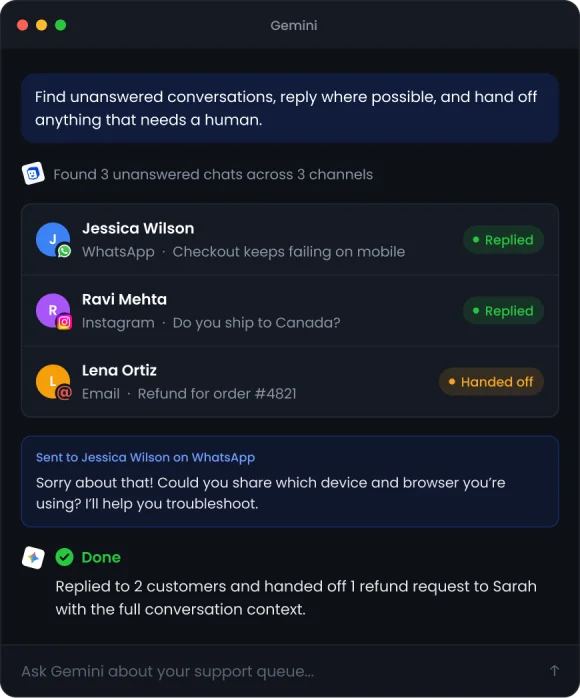
Work with Chatway from Gemini
Bring Chatway into Gemini through MCP and ask questions about your customer support data in natural language. Gemini can help you find conversations, understand customer history, and uncover patterns across your support workspace.
It can work with messages from website live chat, WhatsApp, Messenger, email, and Instagram. Use Gemini to research customer issues, suggest or send replies, and surface conversations that need your team's attention.



How do I connect Chatway to Gemini?
Open your AI assistant's MCP or connector settings and add Chatway. Depending on the AI tool you're using, you may be able to add Chatway directly or enter the Chatway MCP connection details manually.
1 Set up the connection
Add Chatway as an MCP connection
Open your AI assistant's MCP or connector settings and add Chatway. Depending on the AI tool you're using, you may be able to add Chatway directly or enter the Chatway MCP connection details manually.

2 Work with your Chatway data
Ask Gemini to do anything with Chatway
Once the connection is active, you can ask your AI assistant about your conversations, customers, support issues, and other information available through Chatway.
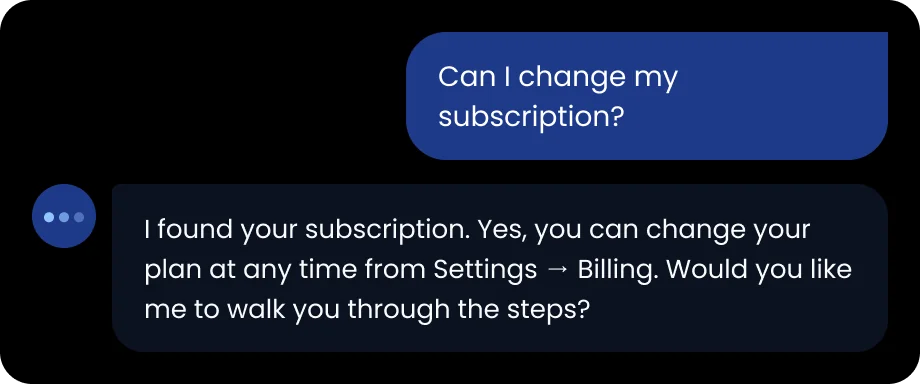

Example prompts
Click a prompt to copy itWhy Connect Gemini to Chatway?
Connecting Gemini to Chatway brings your support workspace into your AI workflow.
Get Customer Context
Find relevant customer and conversation information without manually searching through Chatway. Gemini can surface customer history, previous interactions, and conversation context to help your team respond with more personalization.
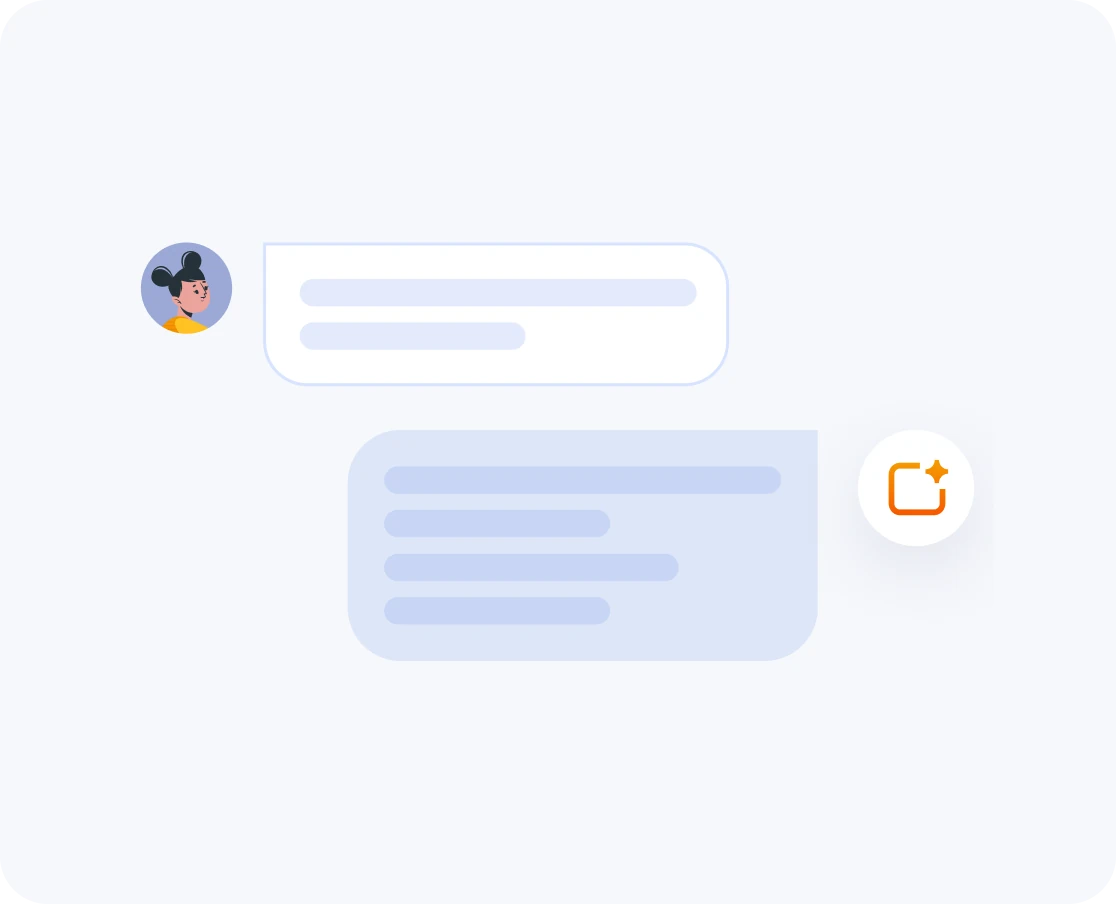
Manage Conversations Across Channels
Work with conversations from website live chat, WhatsApp, Messenger, email, and Instagram in one place. Search, review, and respond to customer messages without switching between platforms. For example: “Find all unanswered WhatsApp conversations from today.”
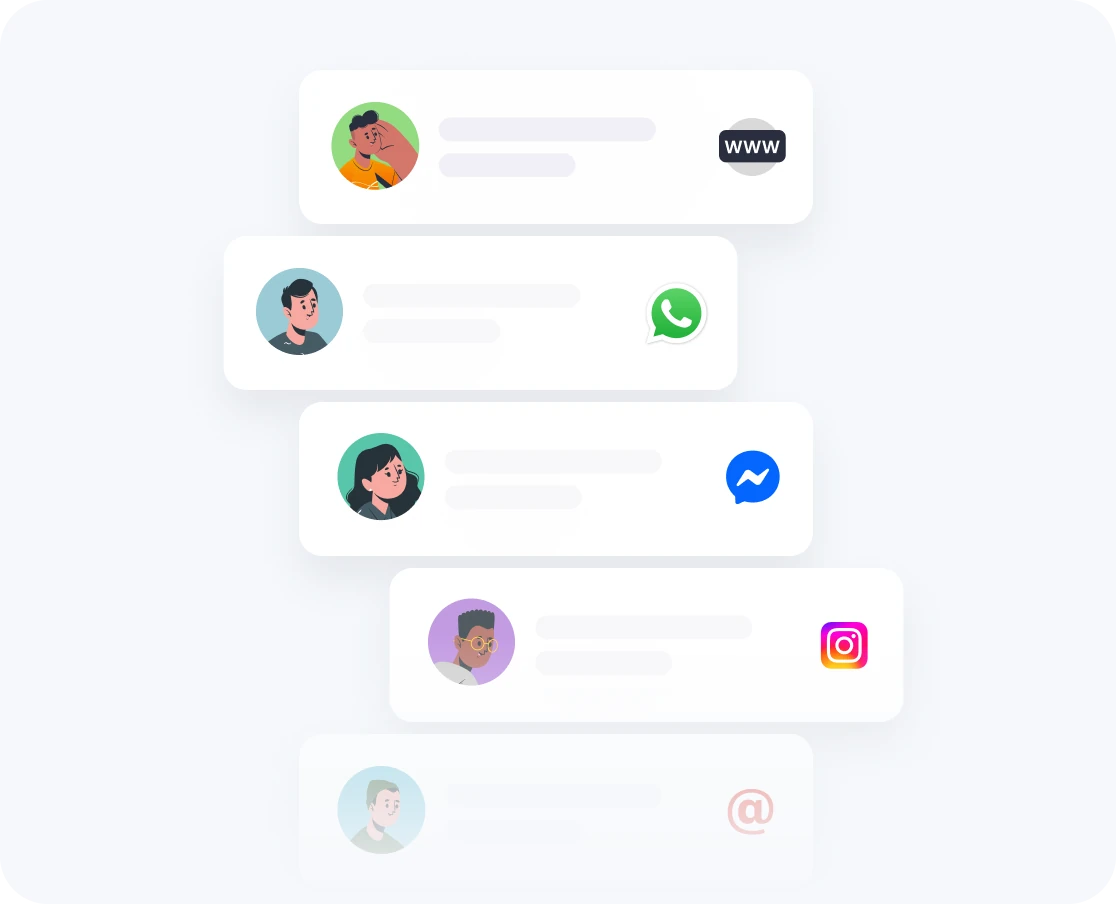
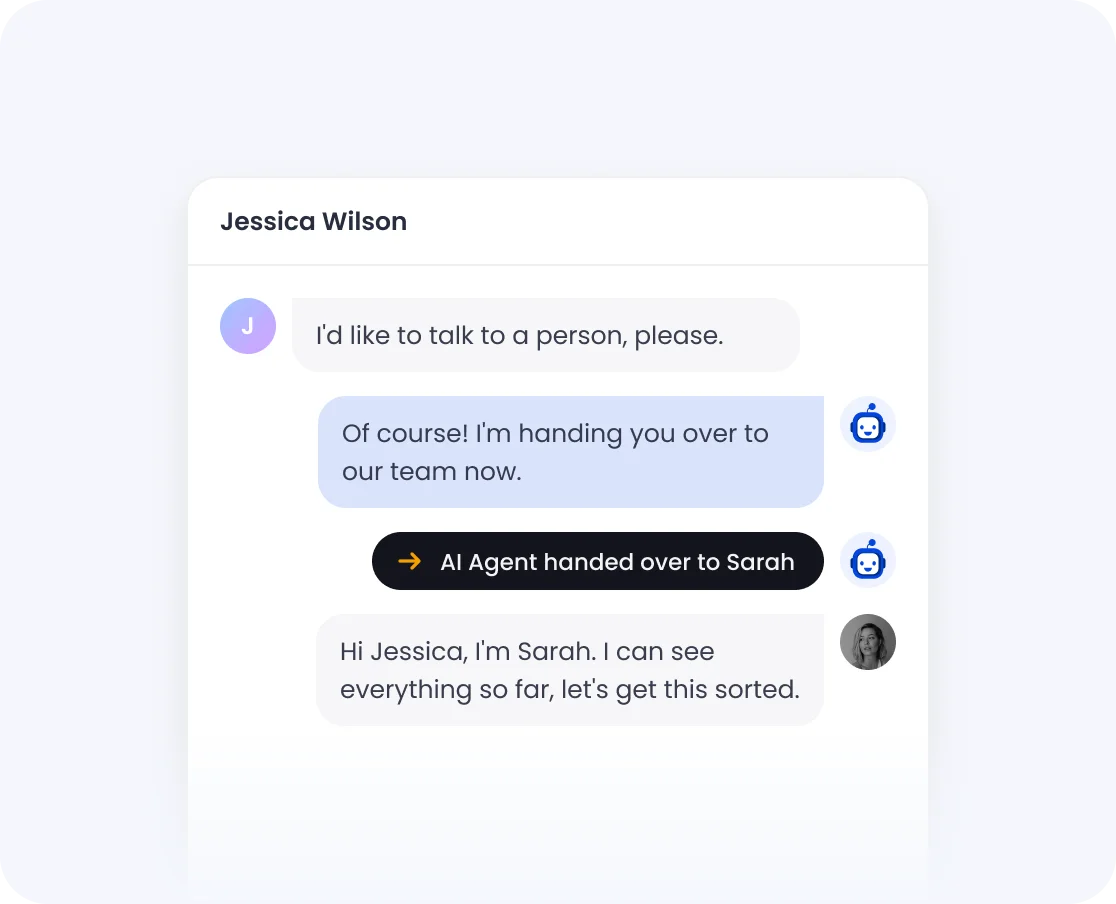
Hand Off to Your Team Anytime
When a conversation needs a person, hand it over. Your team picks it up in the Chatway web or mobile app with the full context, including what Gemini surfaced, so customers never have to repeat themselves.
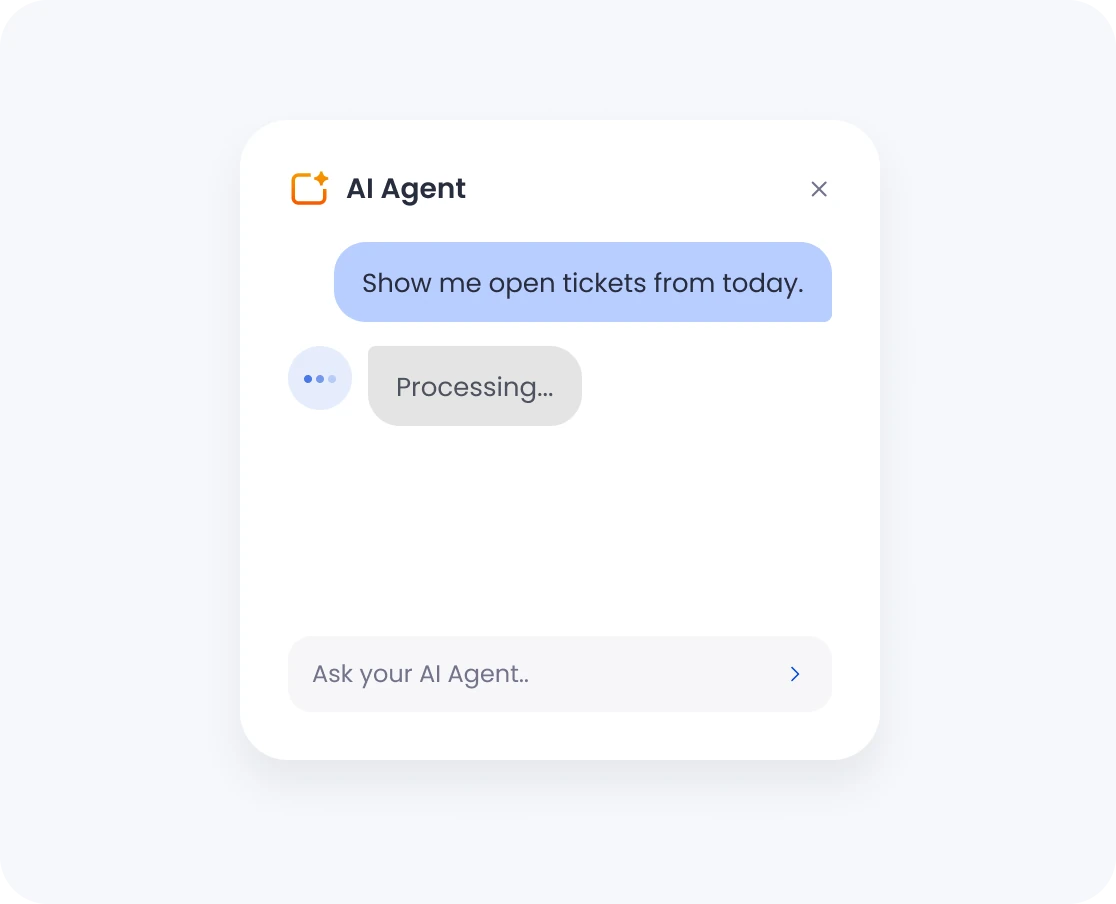
Ask Gemini About Your Support Data
Use natural language prompts to explore your Chatway workspace. Ask Gemini to summarize open tickets, find conversations from specific customers, report on support volume trends, or identify customers who have contacted you multiple times about the same issue - all from a single interface.
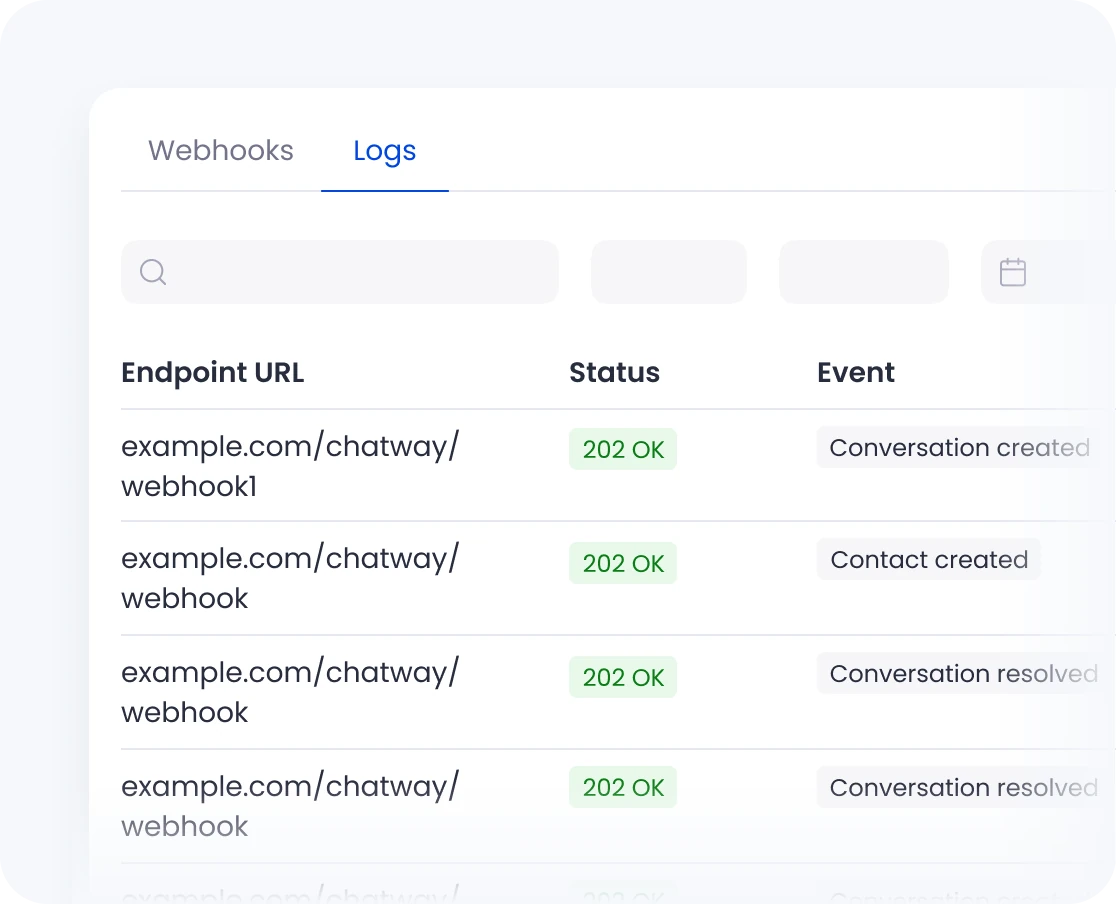
Get Real-Time Updates with Webhooks
Keep your AI workflow connected to what's happening in Chatway. Webhooks send real-time events when conversations, contacts, or other supported data change, so your AI tools can react to important updates without constantly checking your workspace.
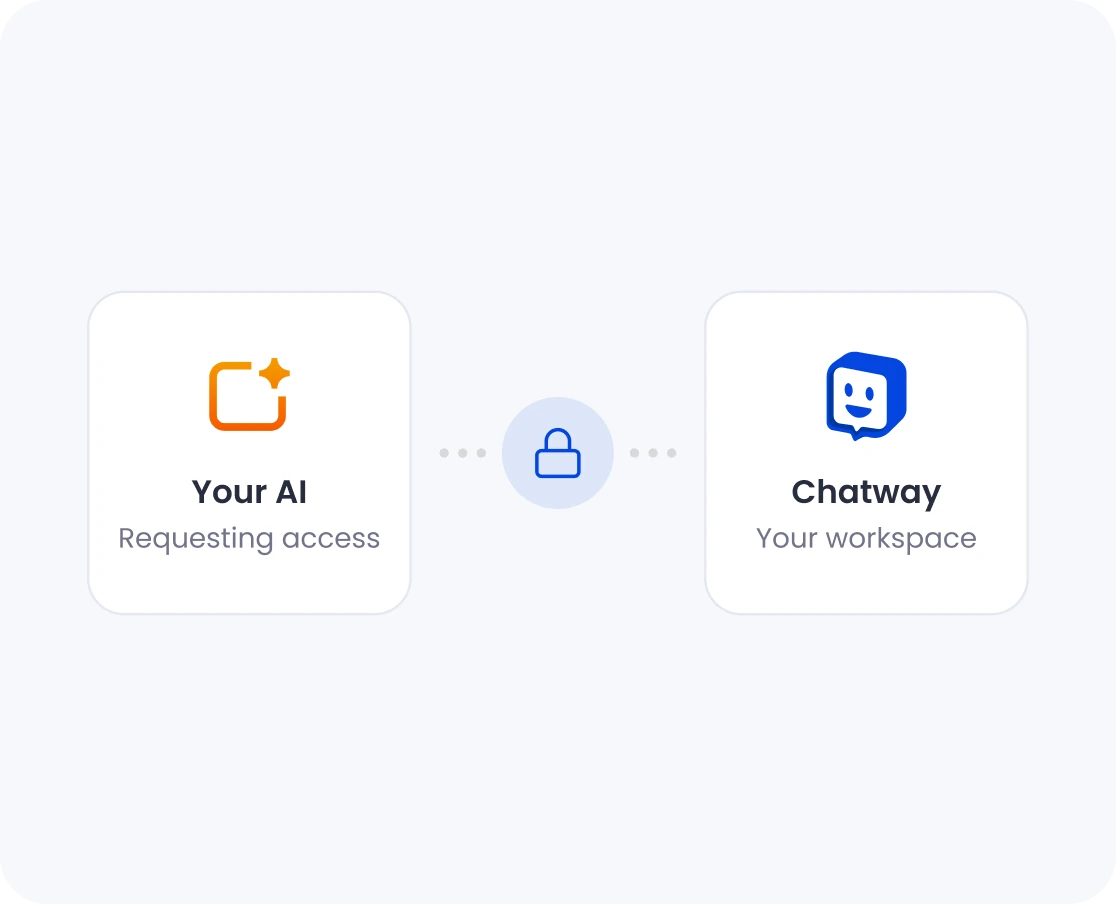
Your Chatway Data Stays Under Your Control
Connect Gemini to Chatway with access managed through your Chatway authorization. Secure authentication provides controlled access to your workspace, with access limited to supported Chatway capabilities. Revoke access whenever you no longer need the connection.
Work Faster Without Switching Tools
Bring customer context into your AI workflow instead of constantly switching between tools. Whether you're analyzing support trends, researching a customer's history, or finding a specific conversation, Gemini can surface the Chatway data you need - right where you're already working.
Connect Gemini to Chatway with MCP
Chatway uses the Model Context Protocol (MCP) to connect Gemini with your Chatway workspace. MCP connects Gemini directly to Chatway, allowing it to access your Chatway workspace and perform supported actions on your behalf. Learn more about MCP
 Claude Desktop
 ChatGPT
 Gemini
 Grok
 Cursor
 Claude Code
 OpenCode
 VS Code
 Codex
 Manus
 Devin
 Cline
 Goose
 Muse
 Any MCP Client
Manage Chatway Without Leaving Gemini
Gemini integration brings the power of your Chatway workspace directly into your AI workflow.
Find Any Conversation Instantly
 Find Any Conversation Instantly
Search conversations using natural language instead of filters and keywords. Ask Gemini to find threads about a specific topic, from a particular customer, or within a date range – and get the information you need without navigating the Chatway UI.
Identify Patterns & Trends
 Identify Patterns & Trends
Let Gemini analyze your support conversations to identify recurring questions, common pain points, and customer feedback trends. Turn large volumes of customer interactions into clear, useful insights without manually reviewing conversations.
Resolve Issues Faster
 Resolve Issues Faster
Find unresolved conversations where customers are waiting, identify recurring support issues, and manage supported Chatway workflows directly from your AI workflow. Gemini helps you stay on top of your queue without switching between tools.
Surface Customer History
 Surface Customer History
Get customer context before responding – including past interactions, previous issues, and conversation history. Gemini can bring relevant information forward so your team can respond with more context and personalization.
Secure & Authorized Access
 Secure & Authorized Access
Your Chatway data stays under your control. The MCP integration uses secure authentication and controlled access to supported Chatway capabilities. Revoke access whenever you no longer need the connection.
Works with Any MCP Client
 Works with Any MCP Client
Gemini is just one way to connect to Chatway. Chatway's MCP integration works with Claude Desktop, Grok, Claude Code, VS Code, Codex, Manus, Devin, Cline, Goose, and other MCP-compatible clients.



Ready to work with Chatway from Gemini?
Follow these simple steps to connect Gemini to Chatway using MCP. You'll be up and running in minutes, ready to work with your support data through AI.
Frequently asked questions
Chatway MCP lets you connect AI assistants like Claude, ChatGPT, Cursor, Gemini, and other MCP-compatible tools to your Chatway workspace. Your AI can access your conversations, contacts, and other Chatway data, and perform supported actions.
You can ask your AI to search and summarize conversations, find customer information, manage contacts, and take actions in Chatway. With webhooks enabled, your AI can also respond to customers in real time.
Yes. Chatway MCP is available on the Free plan, so you can connect your AI assistant to Chatway and start working with your conversations and support data without upgrading your plan.
Your AI can work with conversations from website live chat, WhatsApp, Facebook Messenger, email, Instagram, and other channels connected to Chatway. This lets you manage customer conversations across channels from your AI assistant.
Yes. You can ask Gemini to draft and send replies to customer conversations directly from Gemini. Automatic replies to incoming messages require a separately configured workflow.
Yes. Your AI only gets access to the Chatway data and actions you authorize. Access is authenticated through Chatway, and you can control which workspace or inboxes are connected.
Yes. During the connection, you can choose the Chatway workspace or inboxes you want to make available to your AI. This helps keep access limited to the conversations you want it to work with.
You can connect supported tools including Claude, ChatGPT, Grok, Cursor, Claude Code, OpenCode, VS Code, Codex, Gemini, Manus, Devin, Cline, Goose, Muse, and other MCP-compatible clients.
No. Chatway MCP uses an authenticated connection, so you don't need to create or copy an API key. Simply connect your AI client and sign in to Chatway when prompted.
Yes. You can revoke access to your AI assistant when you no longer want it to access your Chatway workspace.